
HD Video Download
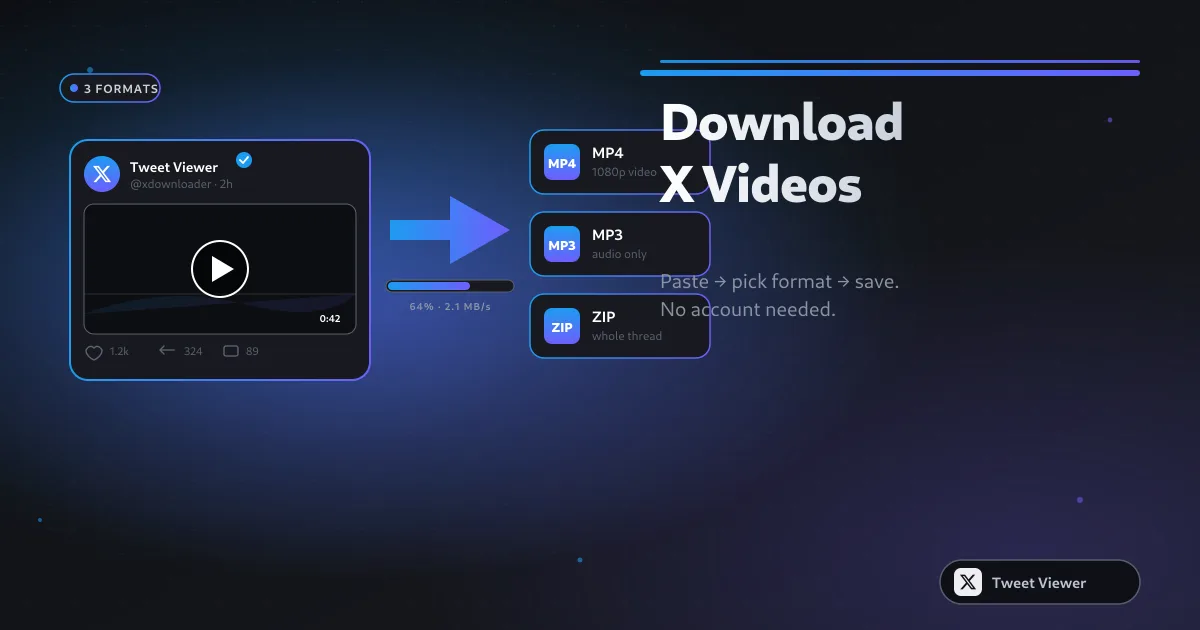
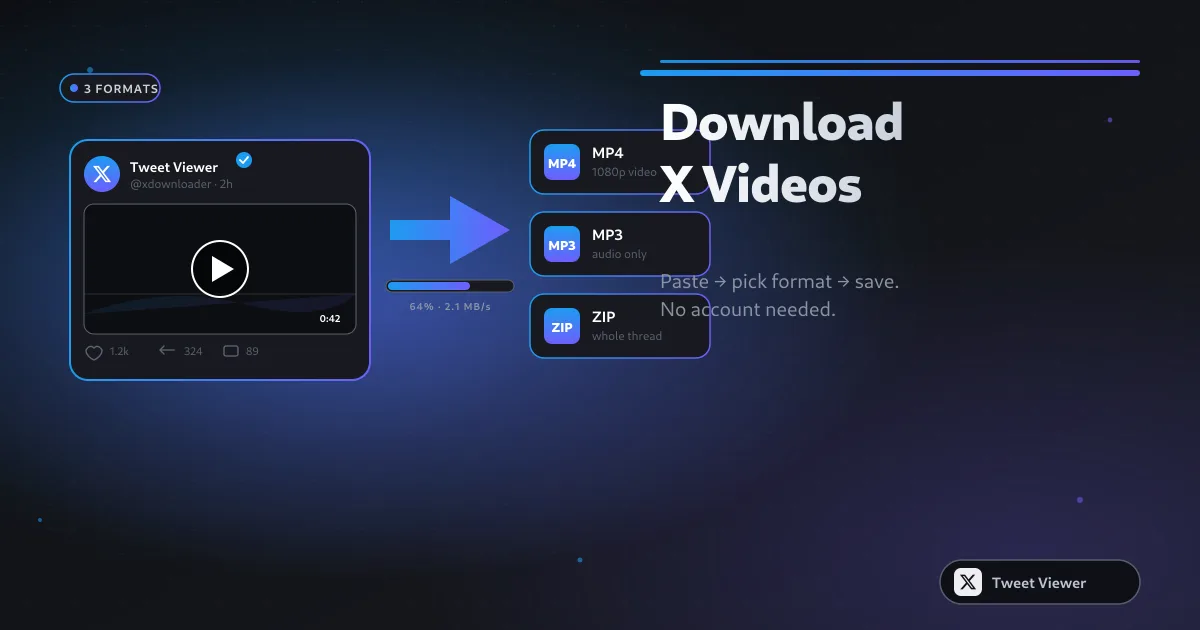
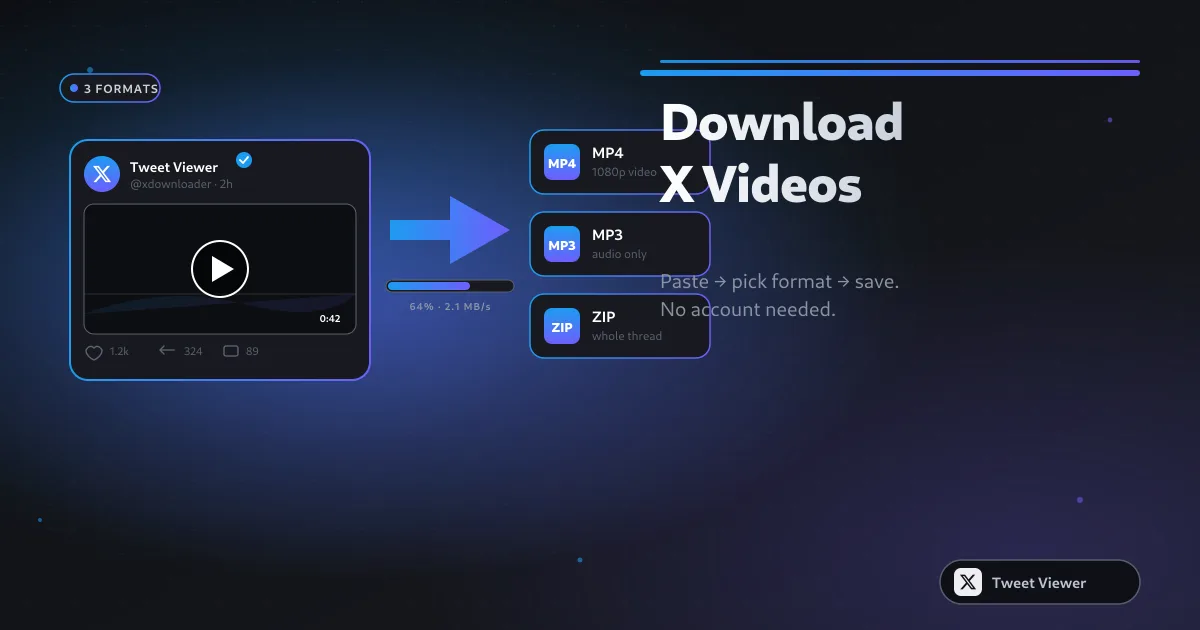
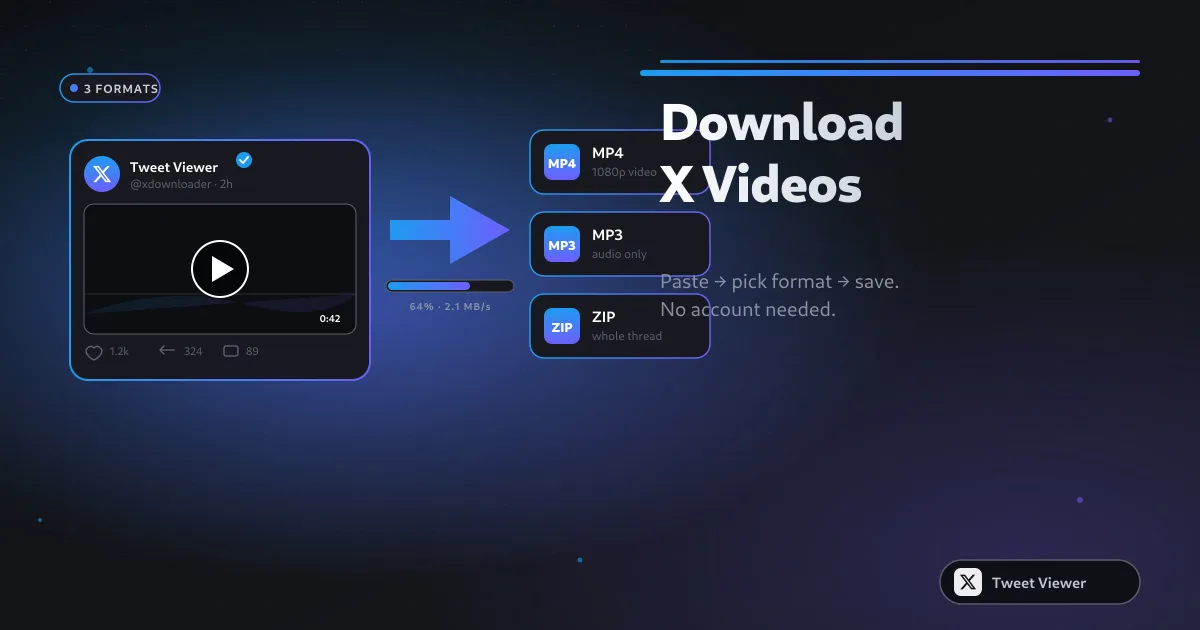
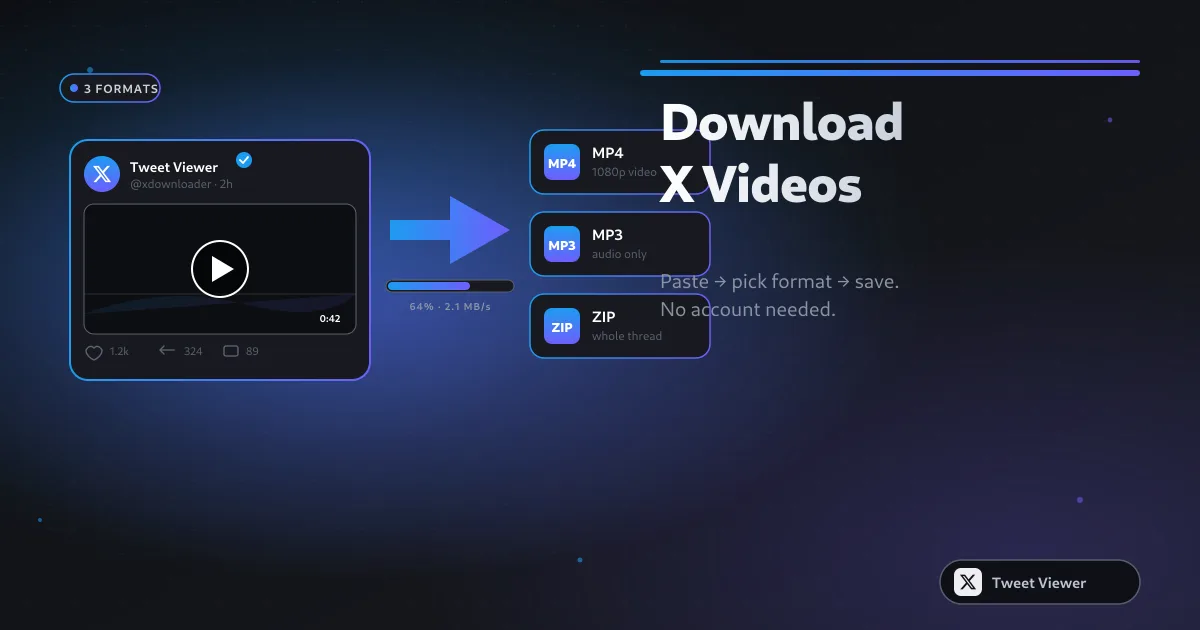
Save X (Twitter) videos as MP4 up to 1080p Full HD — every quality the post published.
Choose the Screenshot tab, paste the link to the tweet, and press download. The tool renders the tweet as a crisp image — including the author name, handle, text and any attached media — and saves it as a PNG you can share anywhere.
The screenshot page targets people who need a clean image of a post, not a video file. That includes journalists embedding a cited tweet in an article, social teams sharing a post to Instagram or LinkedIn, and creators saving proof of a post before it is edited or deleted. The page should make clear that the output is a clean PNG render of the public post, without browser chrome, notification bars, cropped edges or the inconsistent look of a manual phone screenshot.
| Feature | Tweet Viewer | SSSTwitter | SaveTweetVid | SnapX |
|---|---|---|---|---|
| PNG tweet image | Yes, clean render | No, video-focused | No, video-focused | No, video-focused |
| Best for | Articles, decks, proof, social reposts | MP4 download | MP4 download | MP4 download |
| Browser chrome removed | Yes | Not applicable | Not applicable | Not applicable |
| Account needed | No | No | No | No |
Open the X (Twitter) post you want as an image and copy its URL. Any public post works — text-only, with photos, or with attached video.
Paste the tweet link into the input above. The Screenshot tab is already selected, so the tool loads the post's author, handle, text and media in preparation for rendering.
Press Download. The tweet is rendered as a crisp, high-resolution PNG image — clean layout, no status bar, no cropped edges — and saves straight to your Downloads folder.
A rendered screenshot is cleaner than a phone capture: no status bar, no cropped edges, and consistent quality every time. It keeps the tweet readable and professional, which is ideal for articles, presentations and social reposts.
The screenshot includes the tweet's text and its attached photo or video thumbnail. It focuses on the single post you link to, giving you a clean, self-contained image without surrounding clutter.
Save X (Twitter) videos as MP4 up to 1080p Full HD — every quality the post published.
Paste dozens of links and get a single .zip with every video.
Extract audio from any X video and save it as MP3 — great for podcasts, music and voice clips.
Render any X post as a clean PNG image — perfect for articles, decks and reposts.
View any public profile, tweet, photo or video anonymously — no account, no login.
Save any GIF posted on X, or turn an X video into a shareable animated GIF.
Anonymous, unlimited, and 100% free — the file you get is the original MP4.
We never store your links or track your downloads. Runs in the browser — nothing to install.
It is a free browser tool that renders any public Twitter (X) post as a clean, high-resolution PNG image — ideal for articles, slides, and reposts. Paste the post link, customize it, and download — no login, no app, and no watermark.
No. The screenshot tool needs no account or login. It runs entirely in your browser and never asks for your X credentials, so your account stays private.
Screenshots are saved as high-quality PNG images, which keep text sharp and work everywhere.
Yes, capturing tweets as images is completely free and requires no account.
Paste the tweet URL into the box at the top of this page and press Download. The tweet screenshot tool renders the post the way X displays it — avatar, name, handle, timestamp, text, and any embedded media — as a high-resolution PNG with no browser chrome, no URL bar, no scroll bars, and no cropped edges. Faster and cleaner than pressing your device's screenshot shortcut.
Yes — that is exactly what this tool does. Instead of fetching the tweet's attached video or embedded media, it renders the post itself as a PNG image. The result is a standalone graphic you can drop into a blog post, presentation slide, article layout, or another social platform without needing to embed X's script or worry about the post being deleted later.
High-resolution PNG by default. PNG is lossless, so text edges stay razor-sharp even when you zoom in or scale the image for print. There's no JPEG option because JPEG compression softens small serifs and creates halos around text — exactly the failure mode you don't want on a screenshot whose entire point is legible copy. The PNG opens in every image viewer, editor, and CMS.
Screenshot the tweet as a PNG here, then upload the PNG to Instagram as a feed post or Story. Instagram doesn't natively unfurl X links the way Twitter does its own, so a rendered image is the standard workaround creators use. Optionally crop the PNG to Instagram's 1080x1350 portrait or 1080x1080 square dimensions in the Instagram editor before posting for the best feed appearance.
No — it renders just the target post. If you paste a URL that points to a reply within a thread, you get that specific reply, not the parent tweet or the surrounding conversation. If you want a threaded screenshot showing several replies together, screenshot each post separately and stack the PNGs in an image editor. Rendering the whole thread would produce an inconsistently tall image.
Customization is limited right now — the tool renders the post using X's default post layout, so what you see when you download matches how the post looks in a logged-out browser view. There's no theme toggle, no font swap, and no background color picker. If you need a heavily styled version, download the plain PNG and restyle in Figma, Photoshop, or Canva afterward.
Use this tool instead of your device's built-in screenshot shortcut. A phone screenshot captures your entire display — Safari's URL bar, the battery icon, cell signal bars, the time — and cropping those out by hand is fiddly. This tool renders the tweet directly from X's data, so the output is only the post itself. No URL bar to crop, no notch cutout to hide, no keyboard peeking in from the bottom.
Yes — the PNG is rendered at retina-quality pixel density, roughly 2x the on-screen dimensions, so the file measures around 1200 pixels wide. That's enough resolution for editorial use in a magazine layout, newspaper column, or trade paperback at typical column widths. For a full-page hero image at 300 DPI you may want to re-render at a larger scale, but for inline quotes and pull-outs the default is plenty sharp.
Not in a single click — the tool renders the specific tweet you paste, not the surrounding thread. The reliable workflow is to capture each post in the thread separately, then stitch the PNGs vertically in an image editor like Figma, Photoshop, or Preview. That gives you full control over spacing between posts and lets you drop unimportant replies. Our thread screenshot guide walks through the ordering, alignment, and export settings that keep the composite looking like one clean graphic rather than a stack of mismatched captures.
The default PNG is landscape-leaning because tweets themselves are wider than they are tall. For Instagram feed posts, drop the PNG onto a 1080x1350 portrait canvas with padding so nothing is cropped; for Stories, use 1080x1920 with the tweet centered vertically. LinkedIn's feed prefers 1200x1200 square or 1200x627 landscape and handles the tweet's native aspect ratio fine at that scale. The cross-platform sizing guide covers exact canvas presets and background choices for each surface.
For inline pull-quotes and single-column embeds at typical trade-paperback or magazine widths, yes — the default retina PNG holds up cleanly at 300 DPI. Where you need to be careful is full-page or half-page hero placements, where the image gets stretched well beyond its native pixel dimensions and text edges start to soften. The editorial-use guide covers when to re-render at a larger scale, how to check effective DPI in InDesign, and which paper stocks tolerate slight softening on quoted body copy.
For casual sharing in a group chat, an OS screenshot is fine. For anything published — articles, decks, feed posts, print — the rendered version wins on three axes: no browser or device chrome to crop away, consistent margins every time so a batch of screenshots looks like a set rather than a scrapbook, and text that stays crisp at 2x display density without any of the compression artifacts a phone capture picks up. The side-by-side comparison lines up both methods on the same tweet so the difference is visible rather than abstract.
Open the tweet on X in any browser, tap the share icon and copy the post's link. Come back to this page — the Screenshot tab is already selected — paste the link into the input box, and press Download. A PNG file appears in your Downloads folder within a second or two, named after the tweet's ID. That's it: three clicks, no account, no watermark. The illustrated walkthrough shows each step with annotated screenshots if you'd rather follow along visually.
No. The tool fetches live data from X at the moment you paste the URL, so if the post has been deleted, made private, or the author's account is suspended, there is nothing for the renderer to draw. The same applies to protected accounts you don't follow. If you have an existing cached copy of the tweet — a browser tab still open on the post, or a third-party archive URL — capture from that source with a manual screenshot instead. The rendered version cannot resurrect content the API no longer returns.
Run the URL through both tools. Paste the tweet link on the Screenshot tab and download the PNG for your article layout or slide deck, then switch to the HD MP4 tab — or open the video downloader — paste the same link, and grab the highest available bitrate for playback or editing. This is the standard workflow for creators embedding a tweet as a static image while also cutting the attached video into a reel or explainer. Both outputs come from the same source post, so timestamps and attribution stay consistent.
Reporting, commentary, criticism, and review are the most common contexts we see tweet screenshots used in, and treating the tweet as a quotation with clear attribution — visible handle, display name, and timestamp — is standard editorial practice. The rendered image preserves all three so readers can trace the source. For commercial reuse (ads, merchandise, endorsements), the calculus is different and typically requires permission from the author. Our privacy page covers what the tool does and does not store; consult the platform's terms and your own editorial policy for use-case specifics.
Yes, and once you notice it you cannot un-see it. A phone screenshot bakes in the status bar, the battery icon, the cell-signal bars, the URL bar, sometimes the keyboard peeking in from the bottom, and whatever background theme your device happened to be on — and the crop is bounded by the physical pixels, so cropping it later softens the edges. The rendered version is built from the tweet's data, so the frame contains only the post itself, at consistent margins every time. Our side-by-side comparison shows the two methods on the same tweet.
Yes — Chrome, Edge, Brave, Arc, Opera, Firefox, and Safari on macOS all render the tweet identically. There is no font-hinting difference between browsers because the tool draws the PNG from data rather than relying on the browser's native tweet renderer. On Windows the PNG saves to your Downloads folder and opens in Photos, Paint, or any editor; on macOS it opens in Preview and drops cleanly into Keynote, Pages, or Figma. The editorial-use guide covers when to re-render at a larger scale for full-page hero placements.
This isn't legal advice. In most jurisdictions, quoting a public tweet inside a review, opinion piece, news article, or classroom discussion — with the handle, display name, and timestamp visible so readers can find the original — is treated similarly to any other short quotation. Commercial use is a different question: putting a tweet on an ad, on merchandise, or on a paid endorsement page typically needs explicit permission from the author regardless of platform. Preserve attribution, avoid presenting the tweet in a misleading context, and consult local law and platform terms when the use case is money-adjacent.
The PNG is not. The tool renders the image locally in your browser tab from the tweet's public post data and writes the finished file directly to your Downloads folder — the pixel buffer never round-trips to us. The post's public fields (author name, handle, text, avatar URL, media thumbnail) come from a lookup your browser makes directly to the public FxTwitter API — our server never sees the link. No login, no analytics, and no record of which tweets you captured. Details on our privacy page.
Yes, and it's a common workflow for creators cross-posting to Instagram and LinkedIn, where an MP4 alone lacks context. Paste the URL into the main MP4 downloader first to save the full-quality video, then paste the same URL back into this Screenshot tab to render the tweet card as a PNG. Post the MP4 as the video content and the PNG as either the thumbnail overlay or the accompanying carousel slide with the author's handle and text visible, so viewers who see the repost still know who wrote it and can find the original tweet.
Failures cluster around two causes. Private or protected accounts return an authorization error because the tool cannot see fields it isn't allowed to see; the workaround is to ask the author for the text or a screenshot they render themselves. Deleted tweets return a 404 with no cached fallback — no renderer can reconstruct the post from thin air. If the tweet is public, plays for a logged-out viewer on x.com, and still fails to render here, retry once (the public FxTwitter API occasionally throttles) and if the second attempt also fails, send us the URL through the contact page and we'll investigate.
Tweet Viewer is a free, browser-based Twitter (X) toolkit that lets you save any public post as an HD MP4 video, an MP3 audio file, a batch .zip archive, or a clean PNG screenshot — all without logging into X or installing an app.
Tweet Viewer is not a single tool but a suite of distinct functions. The HD MP4 downloader saves any tweet's video at up to 1080p Full HD. The Bulk Downloader accepts a list of X links and returns them as a single .zip archive. The MP3 Converter extracts the audio track from a video tweet on-device using ffmpeg.wasm. The Screenshot tool renders any tweet as a high-resolution PNG. The GIF Downloader saves GIFs posted on X or converts a video into a shareable animated GIF. And the Twitter Viewer lets you browse any public profile, tweet or media anonymously — no account or login.
Four groups make up most of the traffic here. Everyday users who saw a video on X and want to keep it, content creators archiving their own posts and reference footage, journalists preserving newsworthy tweets before deletion, and marketers pulling brand and competitor content for analysis. None of them want an account, a subscription or a watermark — and none of them get one.
The most common reason people arrive at Tweet Viewer is a single need: save a specific tweet's video without logging into X. Paste the post link into the box above, press Download, choose 1080p / 720p / SD, and the MP4 lands in your Downloads folder in seconds. No X account is used, no login prompt appears, and the file is the exact same MP4 X served in the browser.
Tweet Viewer's tools save Twitter content at the same quality X serves it — no re-encoding, no watermark, no forced 720p cap. Videos come through as clean MP4, audio as 128 kbps MP3, screenshots as retina-quality PNG, and batches as a single .zip. What you download is exactly what was posted.
Many users arrive from searches for alternatives to SSSTwitter, SSSX, TwitterVideoDownloader, SnapX, SaveTwt, XSaver, SaveTweetVid, TWDown, TwDownloader, Twdownload, Snaptwitter and various "Twitter to MP3" tools. Tweet Viewer serves as a unified replacement for all of them — five tools in one browser tab, no ad-loaded redirect page between paste and download, and no premium tier hiding higher-quality output.
Tweet Viewer requests zero permissions. It does not ask for your X username, password, or account access. Your browser looks up the post you paste directly with the public FxTwitter API and streams the media from X's public CDN straight to your device — our server never sees the link, and nothing about it is stored.
Copy any public X (Twitter) post link. Paste it into the box above. Press Download. Choose the tab that matches what you want — MP4 video, MP3 audio, Screenshot PNG, or Bulk .zip if you have multiple links — and the file drops straight into your Downloads folder on iPhone, Android, Windows or Mac. Still stuck? Our FAQ covers the common gotchas.