
Цена
100% безплатно, неограничени изтегляния
Изберете раздела „Скрийншот“, поставете линка към туита и натиснете изтегляне. Инструментът визуализира туита като рязко изображение — включително името на автора, потребителското име, текста и всяка прикачена медия — и го запазва като PNG файл, който можете да споделите навсякъде.
Отворете публикацията в X (Twitter), която искате като изображение, и копирайте нейния URL адрес. Работи с всяка публична публикация — само текст, със снимки или с прикачено видео.
Поставете линка на туита в полето по-горе. Разделът „Скрийншот“ вече е избран, така че инструментът зарежда автора, потребителското име, текста и медията на публикацията в подготовка за визуализация.
Натиснете Изтегляне. Туитът се визуализира като рязко PNG изображение с висока резолюция — чист изглед, без лента за състоянието, без изрязани краища — и се запазва директно в папката ви за изтегляния.
Визуализираният скрийншот е по-чист от заснемане от телефон: няма лента за състоянието, няма изрязани краища и последователно качество всеки път. Той запазва туита четлив и професионален, което е идеално за статии, презентации и споделяне в социалните мрежи.
Скрийншотът включва текста на туита и прикачената му снимка или миниатюрен кадър от видеото. Той се фокусира само върху публикацията, към която сочи линкът, като ви дава чисто, самостоятелно изображение без заобикалящ шум.
100% безплатно, неограничени изтегляния
Без регистрация или вход
Няма: оригинален, чист MP4
1080p Full HD (според източника)
iPhone, iPad, Android, Windows, Mac
Работи в браузъра: нищо за инсталиране
Не запазваме връзки и не проследяваме изтеглянията
Това е безплатен браузърен инструмент, който визуализира всяка публична публикация в Twitter (X) като чисто PNG изображение с висока резолюция — идеално за статии, презентации и споделяне отново. Поставете линка на публикацията, персонализирайте я и изтеглете — без вход в акаунт, без приложение и без воден знак.
Не. Инструментът за скрийншот не изисква акаунт или вход. Работи изцяло във вашия браузър и никога не иска данните ви за вход в X, така че акаунтът ви остава поверителен.
Скрийншотите се запазват като PNG изображения с високо качество, които запазват текста рязък и работят навсякъде.
Да, заснемането на туитове като изображения е напълно безплатно и не изисква акаунт.
Поставете URL адреса на туита в полето в горната част на тази страница и натиснете Изтегляне. Инструментът за скрийншот на туит визуализира публикацията по начина, по който X я показва — аватар, име, потребителско име, времеви печат, текст и всяка вградена медия — като PNG изображение с висока резолюция без интерфейс на браузъра, без адресна лента, без ленти за превъртане и без изрязани краища. По-бързо и по-чисто от натискането на комбинацията за скрийншот на устройството ви.
Да — точно това прави този инструмент. Вместо да извлича прикаченото видео или вградената медия на туита, той визуализира самата публикация като PNG изображение. Резултатът е самостоятелна графика, която можете да вмъкнете в публикация в блог, слайд от презентация, оформление на статия или друга социална платформа, без да е нужно да вграждате скрипта на X или да се притеснявате, че публикацията ще бъде изтрита по-късно.
По подразбиране PNG с висока резолюция. PNG е без загуба на качество, така че краищата на текста остават бръснарски остри дори когато увеличите или мащабирате изображението за печат. Няма опция за JPEG, защото JPEG компресията омекотява малките серифи и създава ореоли около текста — точно проблемът, който не искате при скрийншот, чиято цялостна цел е четлив текст. PNG файлът се отваря във всеки визуализатор на изображения, редактор и CMS.
Направете скрийншот на туита като PNG тук, след което качете PNG файла в Instagram като публикация в емисията или като Story. Instagram не разгъва линкове от X естествено, както прави Twitter със собствените си линкове, така че визуализираното изображение е стандартният заобиколен път, използван от авторите. По желание изрежете PNG файла до портретните размери 1080x1350 или квадратните 1080x1080 на Instagram в редактора на Instagram, преди да публикувате, за да изглежда най-добре в емисията.
Не — визуализира се само целевата публикация. Ако поставите URL адрес, който сочи към отговор в нишка, получавате точно този отговор, а не родителския туит или заобикалящия разговор. Ако искате скрийншот на нишка, показващ няколко отговора заедно, направете скрийншот на всяка публикация поотделно и наредете PNG файловете в редактор на изображения. Визуализирането на цялата нишка би довело до изображение с непоследователна височина.
В момента персонализацията е ограничена — инструментът визуализира публикацията, като използва стандартното оформление на X, така че това, което виждате при изтеглянето, съответства на изгледа на публикацията за незалогнат посетител в браузъра. Няма превключвател на темата, няма смяна на шрифта и няма избор на цвят на фона. Ако ви трябва силно стилизирана версия, изтеглете обикновения PNG файл и го стилизирайте допълнително в Figma, Photoshop или Canva.
Използвайте този инструмент вместо вградената комбинация за скрийншот на устройството ви. Скрийншот от телефон заснема целия ви екран — адресната лента на Safari, иконата на батерията, индикаторите за сигнал, часа — и ръчното изрязване на тези елементи е трудоемко. Този инструмент визуализира туита директно от данните на X, така че резултатът е само самата публикация. Няма адресна лента за изрязване, няма изрез за камера за скриване, няма клавиатура, надничаща отдолу.
Да — PNG файлът се визуализира при плътност на пикселите с retina качество, приблизително 2 пъти размерите на екрана, така че файлът измерва около 1200 пиксела широчина. Това е достатъчна резолюция за редакционна употреба в оформление на списание, вестникарска колона или книга с меки корици при типични широчини на колони. За цялостраничен хиро изображение при 300 DPI може да искате да визуализирате отново в по-голям мащаб, но за вградени цитати и изрезки стандартният вариант е напълно достатъчно рязък.
Не с едно кликване — инструментът визуализира конкретния туит, който поставяте, а не заобикалящата нишка. Надеждният работен процес е да заснемете всяка публикация в нишката поотделно, след което да наредите PNG файловете вертикално в редактор на изображения като Figma, Photoshop или Preview. Това ви дава пълен контрол над разстоянието между публикациите и ви позволява да пропуснете неважни отговори. Нашето ръководство за скрийншот на нишка разглежда подредбата, подравняването и настройките за експорт, които запазват композицията, изглеждаща като едно чисто изображение, а не купчина несъответстващи си заснемания.
Стандартният PNG файл е по-скоро хоризонтален, защото самите туитове са по-широки, отколкото високи. За публикации в емисията на Instagram поставете PNG файла върху портретно платно 1080x1350 с отстъп, така че нищо да не се изреже; за Stories използвайте 1080x1920 с центриран вертикално туит. Емисията на LinkedIn предпочита квадрат 1200x1200 или хоризонтален формат 1200x627 и се справя добре с естественото съотношение на страните на туита в този мащаб. Ръководството за размери между платформите разглежда точните предварителни настройки на платната и изборите на фон за всяка платформа.
За вградени изрезки и вграждания в една колона при типични широчини за книга с меки корици или списание, да — стандартният PNG файл с retina качество издържа чисто при 300 DPI. Мястото, където трябва да внимавате, е при цялостранично или полустранично хиро позициониране, където изображението се разтяга далеч отвъд естествените си пикселни размери и краищата на текста започват да омекват. Ръководството за редакционна употреба разглежда кога да визуализирате отново в по-голям мащаб, как да проверите ефективните DPI в InDesign и кои видове хартия толерират леко омекотяване на цитирания текст.
За случайно споделяне в групов чат скрийншот от операционната система е напълно достатъчен. За всичко, което се публикува — статии, презентации, публикации в емисия, печат — визуализираната версия печели по три показателя: няма интерфейс на браузъра или устройството за изрязване, последователни полета всеки път, така че поредица от скрийншоти да изглежда като комплект, а не като разнородна колекция, и текст, който остава рязък при 2 пъти плътност на екрана без нито един от компресионните артефакти, които заснемане от телефон улавя. Сравнението едно до друго подрежда двата метода на един и същ туит, така че разликата да е видима, а не абстрактна.
Отворете туита в X във всеки браузър, докоснете иконата за споделяне и копирайте линка на публикацията. Върнете се на тази страница — разделът „Скрийншот“ вече е избран — поставете линка в полето и натиснете Изтегляне. PNG файл се появява в папката ви за изтегляния за секунда или две, наименуван по идентификатора на туита. Това е всичко: три кликвания, без акаунт, без воден знак. Илюстрираното ръководство показва всяка стъпка с анотирани скрийншоти, ако предпочитате да следвате визуално.
Не. Инструментът извлича актуални данни от X в момента, в който поставите URL адреса, така че ако публикацията е изтрита, направена частна или акаунтът на автора е спрян, няма какво инструментът за визуализация да изобрази. Същото важи за защитени акаунти, които не следвате. Ако имате съществуващо кеширано копие на туита — все още отворен таб на браузъра с публикацията, или URL адрес на архив на трета страна — заснемете от този източник с ръчен скрийншот вместо това. Визуализираната версия не може да възроди съдържание, което API-то вече не връща.
Стартирайте URL адреса през двата инструмента. Поставете линка на туита в раздела „Скрийншот“ и изтеглете PNG файла за оформлението на вашата статия или презентация, след което превключете към раздела HD MP4 — или отворете инструмента за изтегляне на видео — поставете същия линк и вземете най-високия наличен битрейт за възпроизвеждане или монтаж. Това е стандартният работен процес за автори, които вграждат туит като статично изображение, докато същевременно изрязват прикаченото видео в риел или обяснително видео. И двата резултата идват от една и съща изходна публикация, така че времевите печати и авторството остават последователни.
Отразяване на новини, коментар, критика и ревю са най-често срещаните контексти, в които виждаме използвани скрийншоти на туитове, а третирането на туита като цитат с ясно авторство — видимо потребителско име, показвано име и времеви печат — е стандартна редакционна практика. Визуализираното изображение запазва и трите, така че читателите да могат да проследят източника. За търговска повторна употреба (реклами, стоки, одобрения) сметката е различна и обикновено изисква разрешение от автора. Нашата страница за поверителност разглежда какво инструментът съхранява и какво не; консултирайте се с условията на платформата и собствената си редакционна политика за конкретните случаи на употреба.
Да, и веднъж забелязана, разликата не може да бъде отзабелязана. Скрийншот от телефон вгражда лентата за състоянието, иконата на батерията, индикаторите за сигнал, адресната лента, понякога клавиатурата, надничаща отдолу, и каквато и тема на фона да се е случило устройството ви да е на — а изрязването е ограничено от физическите пиксели, така че по-късното изрязване омекотява краищата. Визуализираната версия е изградена от данните на туита, така че кадърът съдържа само самата публикация, при последователни полета всеки път. Нашето сравнение едно до друго показва двата метода на един и същ туит.
Да — Chrome, Edge, Brave, Arc, Opera, Firefox и Safari на macOS визуализират туита по идентичен начин. Няма разлика в изчертаването на шрифта между браузърите, защото инструментът изчертава PNG файла от данни, а не разчита на нативния визуализатор на туитове на браузъра. На Windows PNG файлът се запазва в папката ви за изтегляния и се отваря в Photos, Paint или всеки редактор; на macOS се отваря в Preview и се вмъква чисто в Keynote, Pages или Figma. Ръководството за редакционна употреба разглежда кога да визуализирате отново в по-голям мащаб за цялостранично хиро позициониране.
Това не е правен съвет. В повечето юрисдикции цитирането на публичен туит в ревю, мнение, новинарска статия или дискусия в клас — с видими потребителско име, показвано име и времеви печат, така че читателите да могат да намерят оригинала — се третира подобно на всеки друг кратък цитат. Търговската употреба е различен въпрос: поставянето на туит в реклама, върху стока или на страница с платено одобрение обикновено изисква изрично разрешение от автора, независимо от платформата. Запазвайте авторството, избягвайте представянето на туита в подвеждащ контекст и се консултирайте с местното законодателство и условията на платформата, когато случаят на употреба е свързан с пари.
PNG файлът не се качва. Инструментът визуализира изображението локално в таба на браузъра ви от публичните данни на публикацията на туита и записва готовия файл директно в папката ви за изтегляния — пикселният буфер никога не пътува до нас и обратно. Публичните полета на публикацията (име на автора, потребителско име, текст, URL адрес на аватара, миниатюра на медията) идват от справка, която браузърът ви прави директно към публичния FxTwitter API — нашият сървър никога не вижда връзката. Без вход, без анализи и без запис кои туитове сте заснели. Подробности на нашата страница за поверителност.
Да, и това е разпространен работен процес за автори, които публикуват повторно в Instagram и LinkedIn, където самостоятелен MP4 файл липсва контекст. Поставете URL адреса първо в основния инструмент за изтегляне на MP4, за да запазите видеото с пълно качество, след което поставете същия URL адрес обратно в този раздел „Скрийншот“, за да визуализирате картата на туита като PNG файл. Публикувайте MP4 файла като видео съдържание и PNG файла или като наслагваща миниатюра, или като придружаващ слайд в карусел с видими потребителско име и текст на автора, така че зрителите, които виждат повторната публикация, все още да знаят кой я е написал и да могат да намерят оригиналния туит.
Грешките се групират около две причини. Частни или защитени акаунти връщат грешка за оторизация, защото инструментът не може да вижда полета, до които няма достъп; заобиколният път е да поискате от автора текста или скрийншот, направен от него самия. Изтритите туитове връщат грешка 404 без резервно кеширано копие — никой визуализатор не може да възстанови публикацията от нищото. Ако туитът е публичен, възпроизвежда се за незалогнат зрител на x.com и все още не се визуализира тук, опитайте отново веднъж (публичният FxTwitter API понякога ограничава честотата), и ако вторият опит също се провали, изпратете ни URL адреса чрез страницата за контакт и ще проучим случая.
Tweet Viewer е безплатен инструментариум за X (Twitter) в браузъра, който ти позволява да запазваш всяка публична публикация като HD MP4 видео, MP3 аудио файл, масов .zip архив или чиста PNG екранна снимка — всичко това без вход в X или инсталиране на приложение.
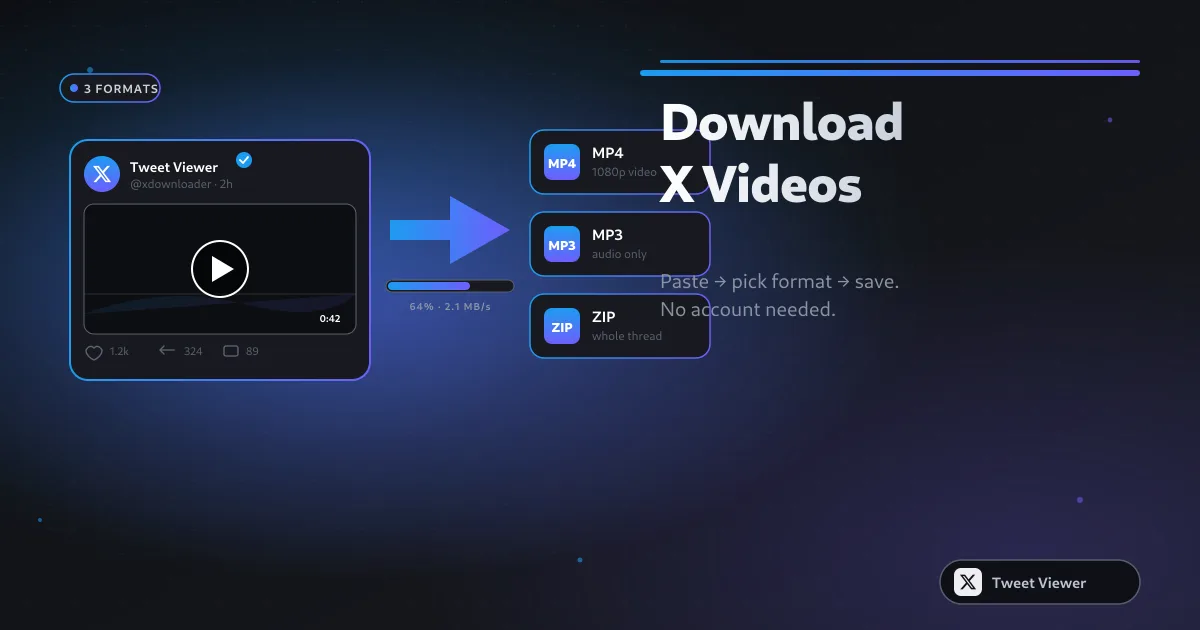
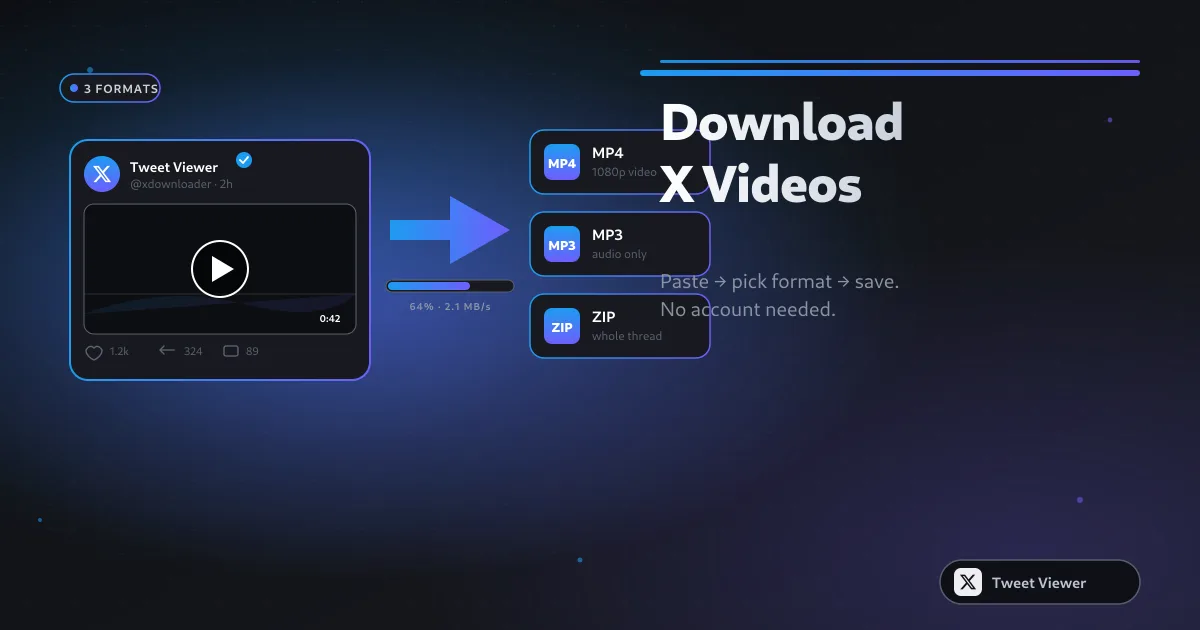
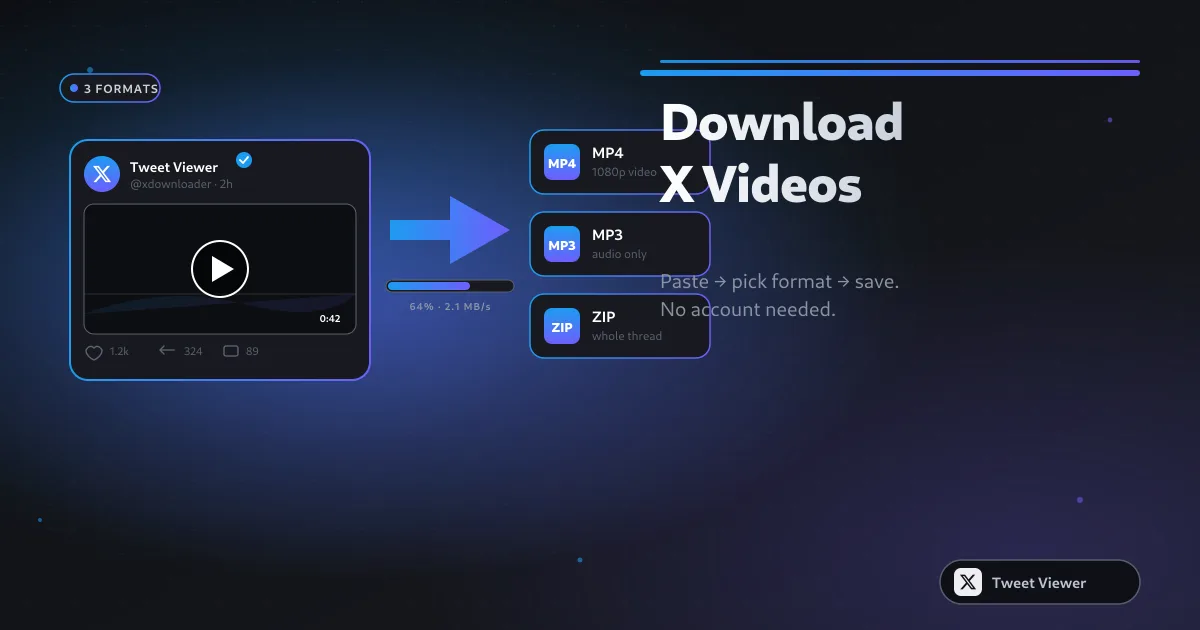
Tweet Viewer не е един инструмент, а комплект от отделни функции. HD MP4 програмата за изтегляне запазва видеото на всеки туит до 1080p Full HD. Масовото изтегляне приема списък с връзки от X и ги връща като един .zip архив. MP3 конвертора извлича аудио писта от видео туит директно на устройството чрез ffmpeg.wasm. Инструментът за екранни снимки изобразява всеки туит като PNG с висока резолюция. Изтеглянето на GIF запазва GIF файлове, публикувани в X, или превръща видео в споделяем анимиран GIF. А Twitter Viewer ти позволява да разглеждаш всеки публичен профил, туит или медия анонимно — без профил, без вход.
Четири групи формират по-голямата част от трафика тук. Обикновени потребители, видели видео в X и искащи да го запазят, създатели на съдържание, архивиращи собствените си публикации и справочни материали, журналисти, съхраняващи важни туитове преди изтриване, и маркетолози, събиращи съдържание от марки и конкуренти за анализ. Никой от тях не иска профил, абонамент или воден знак — и никой не получава такъв.
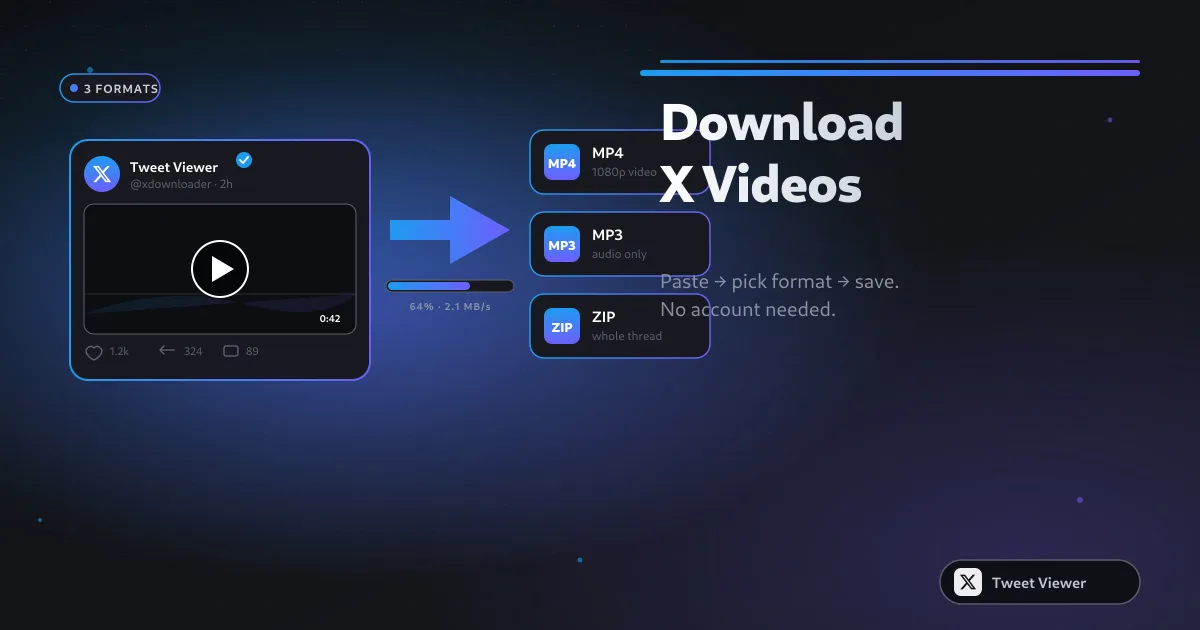
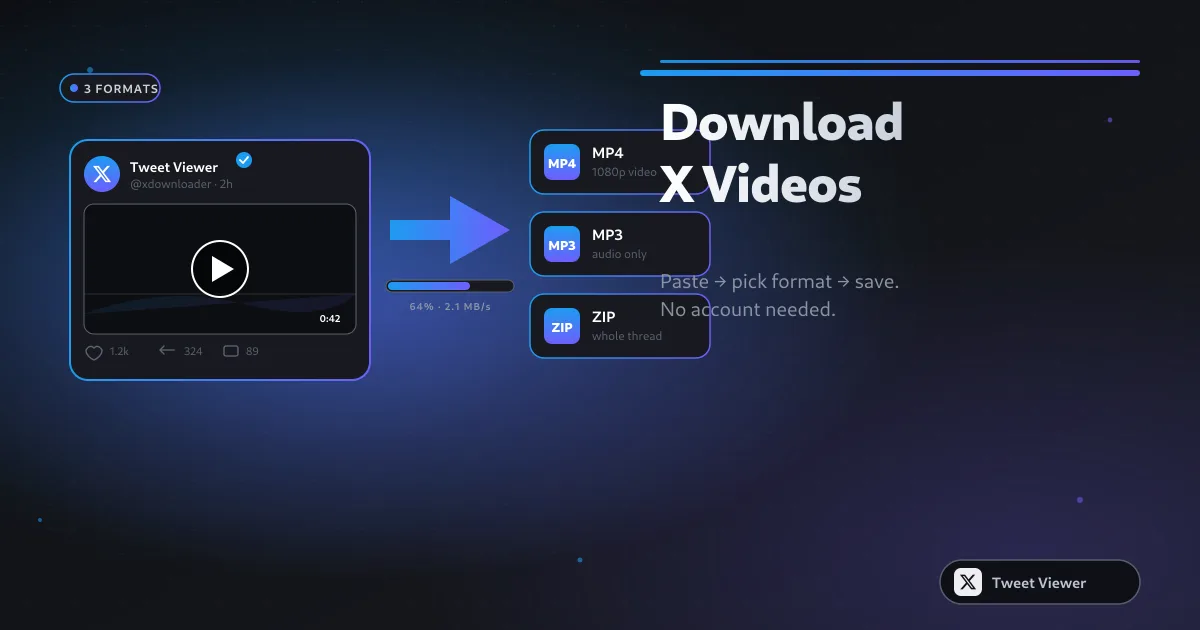
Най-честата причина хората да идват в Tweet Viewer е една-единствена нужда: да запазят видеото на конкретен туит без да влизат в X. Постави връзката на публикацията в полето по-горе, натисни „Изтегли“, избери 1080p / 720p / SD, и MP4 файлът пристига в папката ти за изтегляния за секунди. Не се използва профил в X, не се появява подкана за вход, а файлът е точно същият MP4, който X сервира в браузъра.
Инструментите на Tweet Viewer запазват съдържанието от Twitter в същото качество, в което X го сервира — без повторно кодиране, без воден знак, без принудително ограничение до 720p. Видеата пристигат като чист MP4, аудиото — като 128 kbps MP3, екранните снимки — като PNG с качество на ретина, а партидите — като един .zip. Това, което изтегляш, е точно това, което е публикувано.
Много потребители идват от търсения за алтернативи на SSSTwitter, SSSX, TwitterVideoDownloader, SnapX, SaveTwt, XSaver, SaveTweetVid, TWDown, TwDownloader, Twdownload, Snaptwitter и различни инструменти за „Twitter to MP3“. Tweet Viewer служи като обединена замяна за всички тях — пет инструмента в един раздел на браузъра, без страница за пренасочване, заредена с реклами, между поставянето и изтеглянето, и без премиум ниво, което крие изход с по-високо качество.
Tweet Viewer не изисква никакви разрешения. Не пита за потребителското ти име в X, паролата или достъп до акаунта. Браузърът ти проверява поставената публикация директно чрез публичния FxTwitter API и поточно зарежда медията от публичната CDN мрежа на X директно на устройството ти — нашият сървър никога не вижда връзката и нищо за нея не се съхранява.
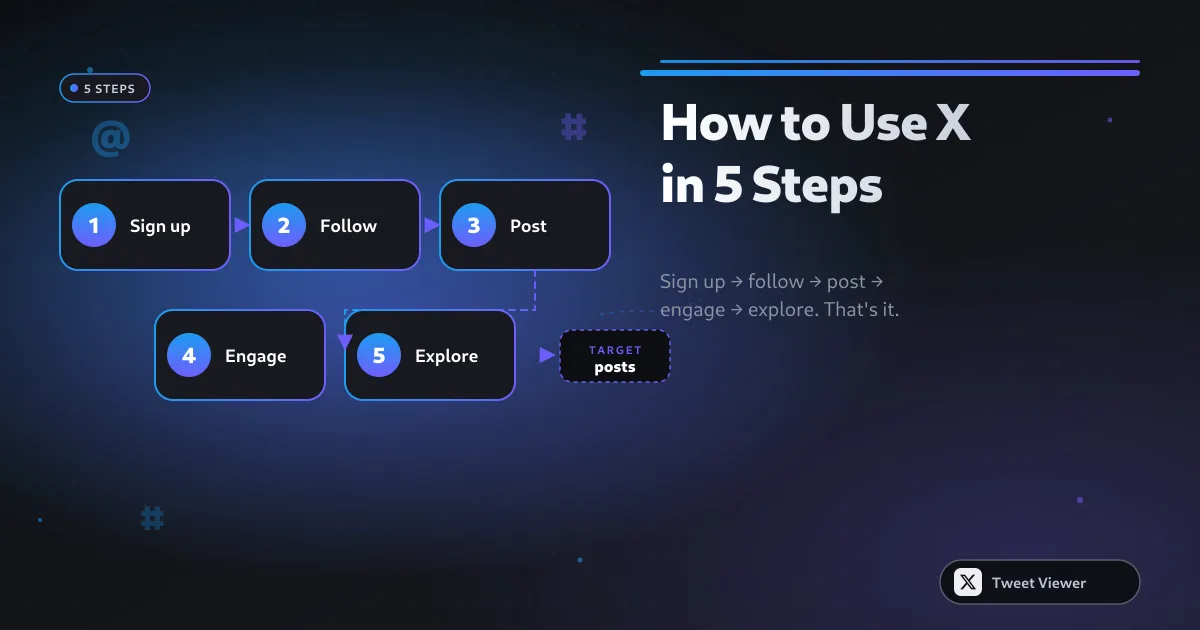
Копирай връзката на всяка публична публикация в X (Twitter). Постави я в полето по-горе. Натисни „Изтегли“. Избери раздела, който отговаря на това, което искаш — MP4 видео, MP3 аудио, PNG екранна снимка, или масов .zip, ако имаш няколко връзки — и файлът пада направо в папката ти за изтегляния на iPhone, Android, Windows или Mac. Все още затруднен? Нашите Често задавани въпроси покриват честите проблеми.