
السعر
مجاني 100%، تنزيلات غير محدودة
اختر تبويب لقطة الشاشة، والصق رابط التغريدة، واضغط على تحميل. تعرض الأداة التغريدة كصورة واضحة — تشمل اسم صاحب المنشور واسم المستخدم والنص وأي وسائط مرفقة — وتحفظها بصيغة PNG يمكنك مشاركتها في أي مكان.
افتح منشور X (تويتر) الذي تريده كصورة وانسخ رابطه. يعمل أي منشور عام — نصي فقط، أو يحتوي على صور، أو مرفق به فيديو.
الصق رابط التغريدة في حقل الإدخال أعلاه. تبويب لقطة الشاشة محدد بالفعل، لذا تحمّل الأداة صاحب المنشور واسم المستخدم والنص والوسائط تمهيدًا للعرض.
اضغط على تحميل. تُعرض التغريدة كصورة PNG واضحة عالية الدقة — بتخطيط نظيف، دون شريط حالة، ودون حواف مقصوصة — وتُحفظ مباشرة في مجلد التنزيلات لديك.
لقطة الشاشة المُعروضة أنظف من لقطة الهاتف: دون شريط حالة، ودون حواف مقصوصة، وبجودة متسقة في كل مرة. تحافظ على وضوح التغريدة ومظهرها الاحترافي، وهو أمر مثالي للمقالات والعروض التقديمية وإعادة النشر الاجتماعي.
تشمل لقطة الشاشة نص التغريدة وصورتها المرفقة أو الصورة المصغرة لفيديوها. وهي تركز على المنشور الواحد الذي تربطه، مما يمنحك صورة نظيفة ومكتفية بذاتها دون فوضى محيطة.
مجاني 100%، تنزيلات غير محدودة
لا حاجة لتسجيل دخول أو إنشاء حساب
لا شيء — ملف MP4 أصلي نظيف
1080p Full HD (حسب المصدر)
iPhone وiPad وAndroid وWindows وMac
يعمل في المتصفح — لا شيء لتثبيته
لا تُخزَّن الروابط، ولا تُتتبَّع التنزيلات
إنها أداة متصفح مجانية تعرض أي منشور عام على تويتر (X) كصورة PNG نظيفة عالية الدقة — مثالية للمقالات والشرائح وإعادة النشر. الصق رابط المنشور، خصّصها، وحمّل — دون تسجيل دخول، ودون تطبيق، ودون علامة مائية.
لا. لا تحتاج أداة لقطة الشاشة إلى حساب أو تسجيل دخول. تعمل بالكامل داخل متصفحك ولا تطلب أبدًا بيانات اعتماد حساب X الخاص بك، لذا يبقى حسابك خاصًا.
تُحفظ لقطات الشاشة بصيغة صور PNG عالية الجودة، مما يحافظ على وضوح النص ويعمل في كل مكان.
نعم، التقاط التغريدات كصور مجاني تمامًا ولا يتطلب أي حساب.
الصق رابط التغريدة في الحقل أعلى هذه الصفحة واضغط على تحميل. تعرض أداة لقطة شاشة التغريدة المنشور بالطريقة نفسها التي تعرضه بها X — الصورة الرمزية، والاسم، واسم المستخدم، والطابع الزمني، والنص، وأي وسائط مضمنة — كصورة PNG عالية الدقة دون واجهة متصفح، ودون شريط عنوان، ودون أشرطة تمرير، ودون حواف مقصوصة. أسرع وأنظف من الضغط على اختصار لقطة الشاشة في جهازك.
نعم — هذا بالضبط ما تفعله هذه الأداة. فبدلًا من جلب فيديو التغريدة المرفق أو وسائطها المضمنة، تعرض المنشور نفسه كصورة PNG. والنتيجة رسم مستقل يمكنك وضعه في منشور مدونة، أو شريحة عرض تقديمي، أو تخطيط مقال، أو منصة اجتماعية أخرى دون الحاجة إلى تضمين سكريبت X أو القلق بشأن حذف المنشور لاحقًا.
صورة PNG عالية الدقة افتراضيًا. صيغة PNG بلا فقدان، لذا تبقى حواف النص حادة تمامًا حتى عند التكبير أو تحجيم الصورة للطباعة. لا يوجد خيار JPEG لأن ضغط JPEG يليّن الحروف الصغيرة ويخلق هالات حول النص — وهو بالضبط نمط الفشل الذي لا تريده في لقطة شاشة هدفها الأساسي هو نص واضح للقراءة. تُفتح صورة PNG في كل عارض صور ومحرر ونظام إدارة محتوى.
التقط لقطة شاشة للتغريدة بصيغة PNG هنا، ثم ارفع الصورة إلى إنستغرام كمنشور في الخلاصة أو كقصة. لا يعرض إنستغرام روابط X تلقائيًا بالطريقة التي يعرض بها تويتر روابطه الخاصة، لذا فإن الصورة المُعروضة هي الحل البديل القياسي الذي يستخدمه المبدعون. يمكنك اختياريًا اقتصاص الصورة إلى أبعاد إنستغرام العمودية 1080×1350 أو المربعة 1080×1080 في محرر إنستغرام قبل النشر للحصول على أفضل مظهر في الخلاصة.
لا — تعرض الأداة المنشور المستهدف فقط. إذا لصقت رابطًا يشير إلى رد داخل سلسلة، تحصل على ذلك الرد المحدد، وليس التغريدة الأصلية أو المحادثة المحيطة بها. إذا أردت لقطة شاشة تعرض عدة ردود معًا، التقط لقطة شاشة لكل منشور على حدة وكدّس صور PNG في محرر صور. عرض السلسلة كاملة سينتج صورة غير متسقة الطول.
التخصيص محدود حاليًا — تعرض الأداة المنشور باستخدام تخطيط X الافتراضي، لذا فإن ما تراه عند التحميل يطابق شكل المنشور في عرض متصفح غير مسجل الدخول. لا يوجد مبدّل مظهر، ولا تبديل خط، ولا منتقي لون خلفية. إذا كنت بحاجة إلى نسخة ذات تنسيق مكثف، حمّل صورة PNG العادية وأعد تنسيقها لاحقًا في Figma أو Photoshop أو Canva.
استخدم هذه الأداة بدلًا من اختصار لقطة الشاشة المدمج في جهازك. تلتقط لقطة شاشة الهاتف شاشتك بأكملها — شريط عنوان Safari، وأيقونة البطارية، وأشرطة إشارة الهاتف، والوقت — واقتصاص كل ذلك يدويًا أمر مزعج. تعرض هذه الأداة التغريدة مباشرة من بيانات X، لذا يكون الناتج المنشور نفسه فقط. لا شريط عنوان لاقتصاصه، ولا فتحة الكاميرا (notch) لإخفائها، ولا لوحة مفاتيح تطل من الأسفل.
نعم — تُعرض صورة PNG بكثافة بكسل بجودة retina، أي نحو ضعفي الأبعاد المعروضة على الشاشة، بحيث يبلغ عرض الملف نحو 1200 بكسل. هذه دقة كافية للاستخدام التحريري في تخطيط مجلة، أو عمود صحيفة، أو كتاب ورقي بعرض أعمدة نموذجي. أما بالنسبة لصورة رئيسية بملء الصفحة عند 300 نقطة في البوصة، فقد ترغب في إعادة العرض بمقياس أكبر، لكن بالنسبة للاقتباسات المضمنة والمقتطفات البارزة، فإن الإعداد الافتراضي حاد بما يكفي.
ليس بنقرة واحدة — تعرض الأداة التغريدة المحددة التي تلصقها، وليس السلسلة المحيطة بها. سير العمل الموثوق هو التقاط لقطة شاشة لكل منشور في السلسلة على حدة، ثم دمج صور PNG عموديًا في محرر صور مثل Figma أو Photoshop أو Preview. يمنحك ذلك تحكمًا كاملًا في المسافات بين المنشورات، ويتيح لك حذف الردود غير المهمة. يستعرض دليلنا لالتقاط لقطات شاشة السلاسل ترتيب اللقطات ومحاذاتها وإعدادات التصدير التي تحافظ على مظهر الصورة المركبة كرسم واحد نظيف بدلًا من كومة لقطات غير متطابقة.
تميل صورة PNG الافتراضية إلى الشكل الأفقي لأن التغريدات نفسها أعرض من طولها. بالنسبة لمنشورات خلاصة إنستغرام، ضع الصورة على قماشة عمودية بأبعاد 1080×1350 مع هوامش حتى لا يُقتصّ منها شيء؛ أما بالنسبة للقصص، فاستخدم 1080×1920 مع توسيط التغريدة عموديًا. تفضّل خلاصة لينكدإن الشكل المربع 1200×1200 أو الأفقي 1200×627 وتتعامل بشكل جيد مع نسبة أبعاد التغريدة الأصلية عند هذا المقياس. يغطي دليل الأحجام متعدد المنصات إعدادات القماشة الدقيقة واختيارات الخلفية لكل منصة.
بالنسبة للاقتباسات البارزة المضمنة والتضمينات ذات العمود الواحد بعروض الكتب الورقية أو المجلات النموذجية، نعم — تصمد صورة PNG الافتراضية عالية الدقة بشكل نظيف عند 300 نقطة في البوصة. أما ما يجب الحذر منه فهو المواضع الرئيسية بملء الصفحة أو نصفها، حيث تُمدَّد الصورة إلى ما هو أبعد بكثير من أبعادها الأصلية بالبكسل وتبدأ حواف النص بالتليّن. يغطي دليل الاستخدام التحريري متى تعيد العرض بمقياس أكبر، وكيفية التحقق من الدقة الفعلية بالنقطة في البوصة في InDesign، وأنواع الورق التي تتحمل تليّنًا طفيفًا في نص الاقتباسات.
للمشاركة العابرة في دردشة جماعية، تكفي لقطة شاشة نظام التشغيل. أما بالنسبة لأي شيء يُنشر — مقالات، عروض تقديمية، منشورات خلاصة، طباعة — فتفوز النسخة المُعروضة على ثلاثة محاور: لا واجهة متصفح أو جهاز لاقتصاصها، وهوامش متسقة في كل مرة بحيث تبدو مجموعة لقطات الشاشة كطقم واحد لا كألبوم متفرق، ونص يبقى حادًا بكثافة عرض مضاعفة دون أي من عيوب الضغط التي تلتقطها لقطة الهاتف. تضع المقارنة جنبًا إلى جنب كلا الأسلوبين على التغريدة نفسها بحيث يكون الفرق مرئيًا لا مجردًا.
افتح التغريدة على X في أي متصفح، اضغط على أيقونة المشاركة وانسخ رابط المنشور. عد إلى هذه الصفحة — تبويب لقطة الشاشة محدد بالفعل — والصق الرابط في حقل الإدخال، واضغط على تحميل. سيظهر ملف PNG في مجلد التنزيلات لديك خلال ثانية أو ثانيتين، مسمّى باسم معرّف التغريدة. هذا كل شيء: ثلاث نقرات، دون حساب، ودون علامة مائية. يعرض الشرح المصوّر كل خطوة بلقطات شاشة موضحة إذا كنت تفضل المتابعة بصريًا.
لا. تجلب الأداة بيانات حية من X في اللحظة التي تلصق فيها الرابط، لذا إذا حُذف المنشور، أو جُعل خاصًا، أو عُلّق حساب صاحبه، فلا يوجد شيء لأداة العرض لرسمه. وينطبق الأمر نفسه على الحسابات المحمية التي لا تتابعها. إذا كانت لديك نسخة مخبأة موجودة من التغريدة — تبويب متصفح لا يزال مفتوحًا على المنشور، أو رابط أرشيف من طرف ثالث — التقط لقطة شاشة يدوية من ذلك المصدر بدلًا من ذلك. لا يمكن للنسخة المُعروضة إحياء محتوى لم تعد الواجهة البرمجية تُرجعه.
مرّر الرابط عبر الأداتين. الصق رابط التغريدة في تبويب لقطة الشاشة وحمّل صورة PNG لتخطيط مقالك أو عرضك التقديمي، ثم انتقل إلى تبويب MP4 عالي الدقة — أو افتح أداة تحميل الفيديو — والصق الرابط نفسه، واحصل على أعلى معدل بت متاح للتشغيل أو المونتاج. هذا هو سير العمل المعتاد للمبدعين الذين يضمّنون تغريدة كصورة ثابتة بينما يقصون أيضًا الفيديو المرفق إلى مقطع ريلز أو فيديو توضيحي. يأتي كلا الناتجين من المنشور المصدر نفسه، لذا تبقى الطوابع الزمنية والإسناد متسقة.
التغطية الإخبارية والتعليق والنقد والمراجعة هي أكثر السياقات شيوعًا التي نرى فيها استخدام لقطات شاشة التغريدات، ومعاملة التغريدة كاقتباس بإسناد واضح — اسم مستخدم ظاهر، واسم معروض، وطابع زمني — هو ممارسة تحريرية معيارية. تحافظ الصورة المُعروضة على العناصر الثلاثة جميعها بحيث يمكن للقراء تتبع المصدر. أما بالنسبة لإعادة الاستخدام التجاري (الإعلانات، البضائع، التزكيات)، فالحساب مختلف ويتطلب عادةً إذنًا من صاحب المنشور. تغطي صفحة الخصوصية لدينا ما تخزنه الأداة وما لا تخزنه؛ راجع شروط المنصة وسياستك التحريرية الخاصة لتفاصيل حالة الاستخدام.
نعم، وبمجرد أن تلاحظ الفرق لن تستطيع تجاهله بعد ذلك. تُدمج لقطة شاشة الهاتف شريط الحالة، وأيقونة البطارية، وأشرطة إشارة الهاتف، وشريط العنوان، وأحيانًا لوحة المفاتيح المطلة من الأسفل، وأي سمة خلفية كان جهازك عليها في تلك اللحظة — ويكون الاقتصاص محدودًا بالبكسلات الفعلية، لذا فإن اقتصاصه لاحقًا يليّن الحواف. تُبنى النسخة المُعروضة من بيانات التغريدة، لذا يحتوي الإطار على المنشور نفسه فقط، بهوامش متسقة في كل مرة. يعرض مقارنتنا جنبًا إلى جنب الأسلوبين على التغريدة نفسها.
نعم — تعرض Chrome وEdge وBrave وArc وOpera وFirefox وSafari على macOS جميعها التغريدة بالطريقة نفسها تمامًا. لا يوجد فرق في تلميح الخطوط بين المتصفحات لأن الأداة ترسم صورة PNG من البيانات بدلًا من الاعتماد على أداة عرض التغريدات الأصلية في المتصفح. على Windows تُحفظ صورة PNG في مجلد التنزيلات لديك وتُفتح في تطبيق الصور أو Paint أو أي محرر؛ وعلى macOS تُفتح في Preview وتنتقل بسلاسة إلى Keynote أو Pages أو Figma. يغطي دليل الاستخدام التحريري متى تعيد العرض بمقياس أكبر لمواضع رئيسية بملء الصفحة.
هذه ليست استشارة قانونية. في معظم الدول، تُعامل عملية اقتباس تغريدة عامة داخل مراجعة، أو مقال رأي، أو مقال إخباري، أو نقاش صفي — مع إظهار اسم المستخدم والاسم المعروض والطابع الزمني حتى يتمكن القراء من العثور على الأصل — بطريقة مشابهة لأي اقتباس قصير آخر. أما الاستخدام التجاري فمسألة مختلفة: وضع تغريدة في إعلان، أو على بضائع، أو في صفحة تزكية مدفوعة يتطلب عادةً إذنًا صريحًا من صاحبها بغض النظر عن المنصة. حافظ على الإسناد، وتجنب عرض التغريدة في سياق مضلل، واستشر القانون المحلي وشروط المنصة عندما تكون حالة الاستخدام مرتبطة بالمال.
صورة PNG لا تُرفع. تعرض الأداة الصورة محليًا داخل تبويب متصفحك من بيانات المنشور العامة للتغريدة، وتكتب الملف النهائي مباشرة في مجلد التنزيلات لديك — لا يمر مخزن البكسلات المؤقت بنا مطلقًا. تأتي الحقول العامة للمنشور (اسم صاحب المنشور، واسم المستخدم، والنص، ورابط الصورة الرمزية، والصورة المصغرة للوسائط) من استعلام يجريه متصفحك مباشرة إلى واجهة FxTwitter API العامة — ولا يرى خادمنا الرابط أبدًا. لا تسجيل دخول، ولا تحليلات، ولا سجل للتغريدات التي التقطتها. التفاصيل على صفحة الخصوصية لدينا.
نعم، وهو سير عمل شائع بين المبدعين الذين ينشرون بشكل متقاطع على إنستغرام ولينكدإن، حيث يفتقر ملف MP4 وحده إلى السياق. الصق الرابط في أداة تحميل MP4 الرئيسية أولًا لحفظ الفيديو بجودته الكاملة، ثم الصق الرابط نفسه مرة أخرى في تبويب لقطة الشاشة هذا لعرض بطاقة التغريدة كصورة PNG. انشر ملف MP4 كمحتوى الفيديو وصورة PNG إما كتراكب صورة مصغرة أو كشريحة كاروسيل مرافقة مع ظهور اسم مستخدم صاحب المنشور ونصه، بحيث يعرف المشاهدون الذين يرون إعادة النشر من كتبها ويمكنهم العثور على التغريدة الأصلية.
تتمركز الإخفاقات حول سببين. تُرجع الحسابات الخاصة أو المحمية خطأ تفويض لأن الأداة لا يمكنها رؤية حقول غير مسموح لها برؤيتها؛ والحل البديل هو أن تطلب من صاحب المنشور النص أو لقطة شاشة يعرضها بنفسه. تُرجع التغريدات المحذوفة خطأ 404 دون أي بديل مخبأ — لا يمكن لأي أداة عرض إعادة بناء المنشور من العدم. إذا كانت التغريدة عامة، وتعمل لمشاهد غير مسجل الدخول على x.com، ومع ذلك تفشل في العرض هنا، أعد المحاولة مرة واحدة (تحد واجهة FxTwitter API العامة أحيانًا من السرعة) وإذا فشلت المحاولة الثانية أيضًا، أرسل لنا الرابط عبر صفحة التواصل وسنقوم بالتحقيق.
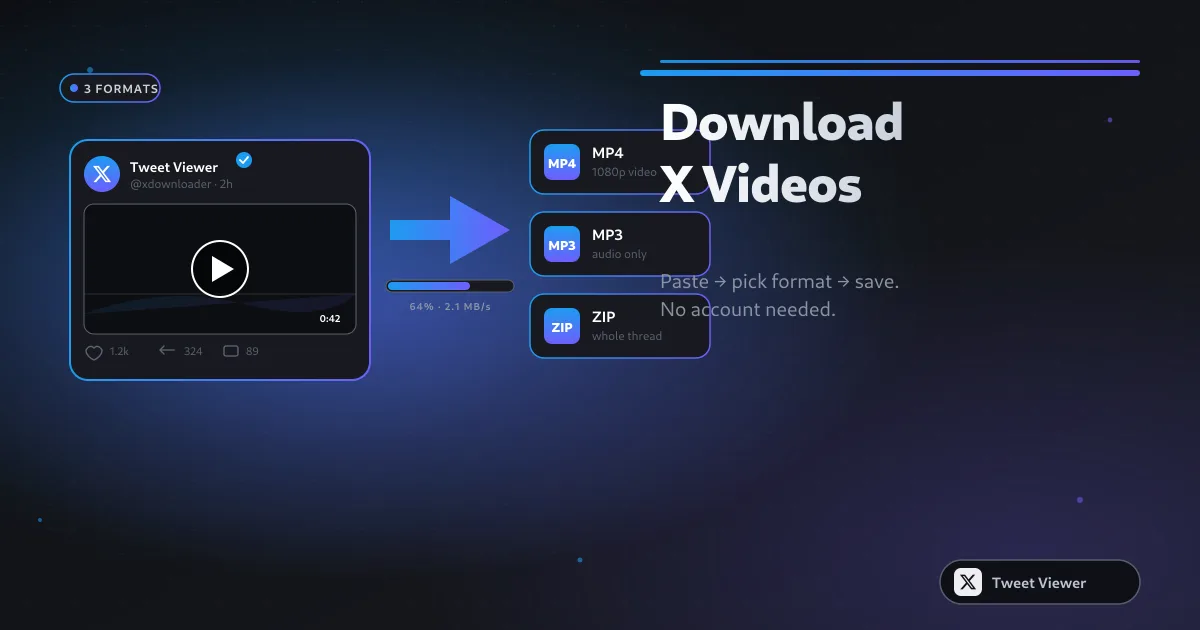
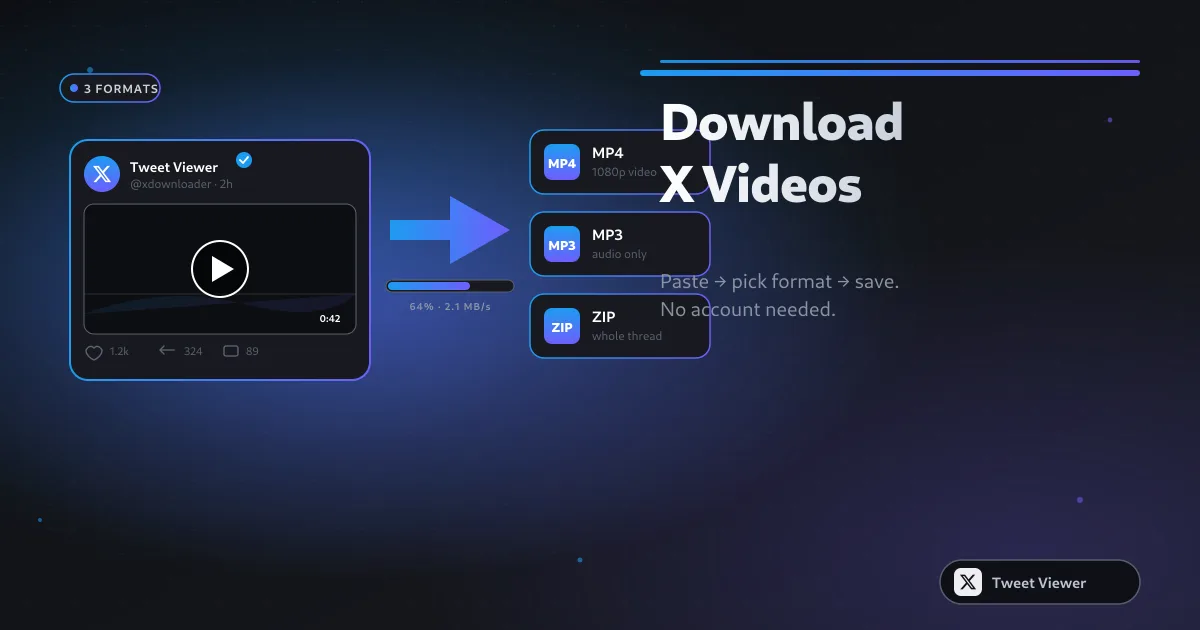
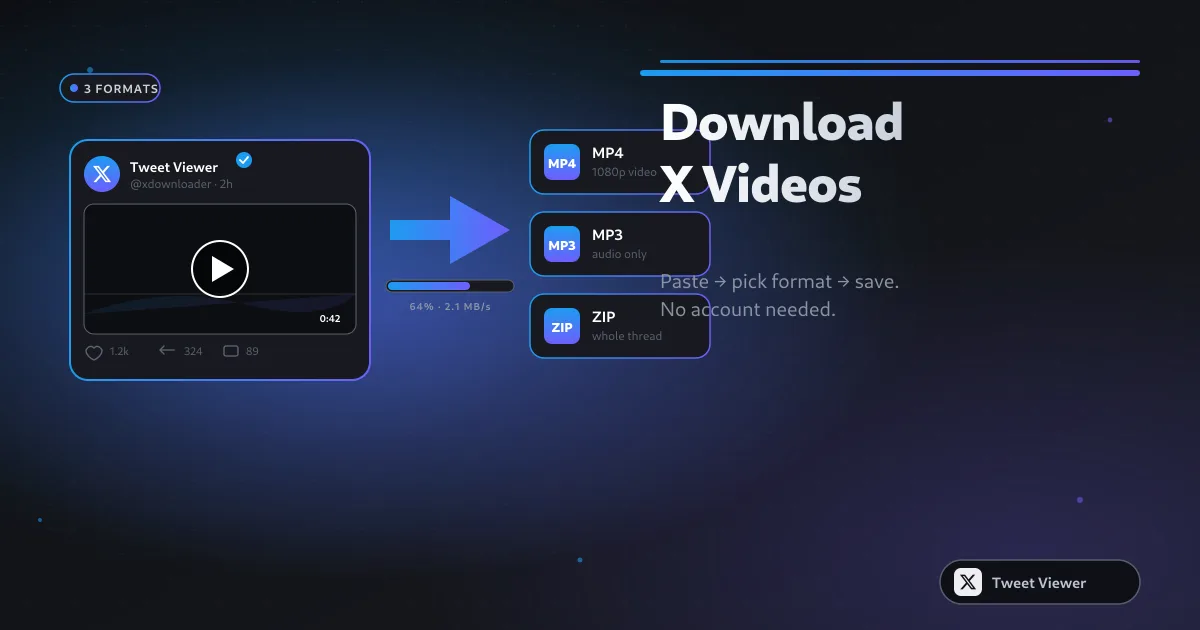
Tweet Viewer هي مجموعة أدوات مجانية تعمل في المتصفح لموقع Twitter (X) تتيح لك حفظ أي منشور عام كفيديو MP4 عالي الدقة، أو ملف صوتي MP3، أو أرشيف .zip مجمّع، أو لقطة شاشة PNG نظيفة — كل ذلك دون تسجيل الدخول إلى X أو تثبيت أي تطبيق.
لا تُعد Tweet Viewer أداة واحدة، بل مجموعة من الوظائف المتمايزة. تحفظ أداة تنزيل MP4 عالية الدقة فيديو أي منشور بدقة تصل إلى 1080p Full HD. تقبل أداة التنزيل المجمّع قائمة من روابط X وتُعيدها كأرشيف .zip واحد. تستخرج أداة تحويل MP3 المسار الصوتي من منشور فيديو مباشرةً على جهازك باستخدام ffmpeg.wasm. تُخرج أداة لقطة الشاشة أي منشور كصورة PNG عالية الدقة. تحفظ أداة تنزيل GIF صور GIF المنشورة على X أو تحوّل فيديو إلى GIF متحرك قابل للمشاركة. أما عارض تويتر فيتيح لك تصفح أي ملف شخصي عام أو منشور أو وسائط بشكل مجهول — بدون حساب أو تسجيل دخول.
تشكّل أربع فئات معظم الزوار هنا. المستخدمون العاديون الذين شاهدوا فيديو على X ويريدون الاحتفاظ به، وصنّاع المحتوى الذين يؤرشفون منشوراتهم ولقطاتهم المرجعية الخاصة، والصحفيون الذين يحفظون التغريدات ذات القيمة الإخبارية قبل حذفها، والمسوّقون الذين يجمعون محتوى العلامة التجارية والمنافسين للتحليل. لا أحد منهم يريد حسابًا أو اشتراكًا أو علامة مائية — ولا أحد منهم يحصل على ذلك.
السبب الأكثر شيوعًا لوصول الناس إلى Tweet Viewer هو حاجة واحدة: حفظ فيديو منشور معيّن دون تسجيل الدخول إلى X. الصق رابط المنشور في المربع أعلاه، اضغط تنزيل، اختر 1080p / 720p / SD، ويصل ملف MP4 إلى مجلد التنزيلات لديك في ثوانٍ. لا يُستخدم أي حساب X، ولا تظهر أي رسالة لتسجيل الدخول، والملف هو نفس ملف MP4 تمامًا الذي يقدّمه X في المتصفح.
تحفظ أدوات Tweet Viewer محتوى تويتر بنفس الجودة التي يقدّمها X — دون إعادة ترميز، ودون علامة مائية، ودون سقف إجباري عند 720p. تصلك الفيديوهات كملف MP4 نظيف، والصوت كملف MP3 بمعدل 128 kbps، ولقطات الشاشة كصورة PNG بجودة retina، والدفعات كأرشيف .zip واحد. ما تنزّله هو بالضبط ما تم نشره.
يصل كثير من المستخدمين بعد البحث عن بدائل لـ SSSTwitter وSSSX وTwitterVideoDownloader وSnapX وSaveTwt وXSaver وSaveTweetVid وTWDown وTwDownloader وTwdownload وSnaptwitter وأدوات متنوعة لتحويل "تويتر إلى MP3". تعمل Tweet Viewer كبديل موحّد لكل هذه الأدوات — خمس أدوات في نافذة متصفح واحدة، دون صفحة إعادة توجيه محمّلة بالإعلانات بين اللصق والتنزيل، ودون مستوى مدفوع يخفي جودة إخراج أعلى.
لا تطلب Tweet Viewer أي أذونات. لا تطلب اسم مستخدم X أو كلمة المرور أو الوصول إلى الحساب. يستعلم متصفحك عن المنشور الذي تلصقه مباشرة عبر واجهة FxTwitter API العامة، ويبث الوسائط من شبكة CDN العامة لدى X مباشرة إلى جهازك — لا يرى خادمنا الرابط أبدًا، ولا يُخزَّن عنه أي شيء.
انسخ رابط أي منشور عام على X (تويتر). الصقه في المربع أعلاه. اضغط تنزيل. اختر التبويب المطابق لما تريده — فيديو MP4، أو صوت MP3، أو لقطة شاشة PNG، أو تنزيل مجمّع .zip إذا كان لديك عدة روابط — وينزل الملف مباشرةً إلى مجلد التنزيلات لديك على iPhone أو Android أو Windows أو Mac. ما زلت عالقًا؟ تغطي صفحة الأسئلة الشائعة لدينا أكثر المشكلات شيوعًا.