
가격
100% 무료, 무제한 다운로드
오디오가 포함된 X(Twitter) 게시물 링크를 붙여넣으면 도구가 원본 MP4를 다운로드한 뒤 ffmpeg.wasm을 이용해 기기에서 오디오 트랙을 완전히 MP3로 변환합니다. 서버에 업로드되는 것도, 설치되는 플러그인도 없으며 완성된 파일은 몇 초 안에 다운로드 폴더에 저장됩니다. 여러 도구를 조합할 필요 없이 트윗에서 오디오를 추출하는 가장 빠른 방법입니다.
X(Twitter) 게시물 URL을 붙여넣고 다운로드를 누르면, 도구가 원본 동영상에서 오디오 트랙만 추출해 320kbps CBR MP3로 만들어줍니다 — 전체 변환 과정이 ffmpeg.wasm을 통해 기기에서 진행되므로 동영상이나 트윗 URL에 대한 어떤 정보도 저희에게 업로드되지 않습니다.
트래픽의 대부분은 네 가지 활용 방식에서 나옵니다. 팟캐스트 청취자는 인터뷰 트윗에서 하이라이트 클립을 추출합니다 — 팟캐스트 클립 활용 가이드에서는 스레드로 슈퍼컷을 만드는 방법을 다룹니다. DJ와 프로듀서는 크리에이터가 X에 직접 게시한 커버, 리믹스, 비트 스니펫을 가져갑니다. 저널리스트와 언어 학습자는 참고와 받아쓰기를 위해 원어민의 음성 메모를 보관합니다.
저희의 전체 비트레이트 및 설정 가이드에서는 나중에 팟캐스트 호스팅 서비스나 DAW에서 MP3를 다시 인코딩할 경우 VBR보다 320 CBR이 더 안전한 기본값인 이유를 설명합니다. 모바일 쪽에서는 iPhone 안내서에서 파일 앱에 정확히 저장되는 위치와 MP3를 음성 메모, Apple Music, 팟캐스트 클라이언트로 옮기는 방법을 다룹니다 — 앱 설치는 필요 없습니다.
오디오를 원하는 X(Twitter) 게시물을 여세요. 공유 아이콘을 탭해 “링크 복사”를 선택하거나 브라우저 주소창에서 URL을 바로 복사하세요.
복사한 URL을 상단 입력란에 붙여넣으세요. MP3 탭이 이미 선택되어 있어 도구가 파일을 오디오로 준비해야 한다는 것을 자동으로 인식합니다.
다운로드를 누르세요. ffmpeg.wasm을 사용해 원본 동영상에서 오디오 트랙을 추출합니다 — 모든 과정이 브라우저 안에서 이루어지며 어떤 것도 업로드되지 않습니다 — 완성된 MP3는 몇 초 만에 다운로드 폴더에 저장됩니다.
기본적으로 변환기는 128kbps MP3를 목표로 하며, 이는 대부분의 X 동영상 오디오(원본 MP4의 일반적인 128kbps AAC)와 잘 맞습니다. MP3는 이미 압축된 원본에서 트랜스코딩되므로 출력 품질은 X가 호스팅하는 품질에 의해 제한됩니다 — 음성, 음악 클립, 팟캐스트는 원본과 충실하게 재현되지만, 128kbps 팟캐스트 클립이 컨테이너만 바꾼다고 스튜디오급 음질이 되지는 않습니다.
MP3 탭은 팟캐스트 일부를 저장하거나, X에 공유된 음악 커버와 리믹스를 캡처하거나, 크리에이터의 음성 메모를 보관하거나, 인터뷰 음성을 아카이빙하거나, 운전이나 운동 중처럼 동영상 파일이 불편한 상황에서 듣기 위해 긴 클립에서 오디오만 추출할 때 많이 사용됩니다. MP3는 어디서나 지원되는 형식이라 별도 소프트웨어 없이 어떤 휴대폰, 차량 스테레오, MP3 플레이어에서도 재생됩니다.
100% 무료, 무제한 다운로드
로그인이나 가입 불필요
없음 — 깨끗한 원본 MP4
1080p Full HD (원본에 따라 다름)
iPhone, iPad, Android, Windows, Mac
브라우저에서 실행 — 설치할 것 없음
링크 저장 안 함, 다운로드 추적 안 함
공개된 모든 Twitter(X) 동영상에서 오디오를 추출해 MP3로 저장할 수 있는 무료 브라우저 도구입니다. 게시물 링크를 붙여넣고 비트레이트를 선택한 뒤 다운로드하면 됩니다 — 로그인도, 앱 설치도, 워터마크도 필요 없습니다.
아니요. MP3 다운로더는 계정이나 로그인이 필요하지 않습니다. 모든 과정이 브라우저에서 실행되며 X 로그인 정보를 요청하지 않으므로 계정이 안전하게 보호됩니다.
변환기는 X가 일반적으로 제공하는 오디오 비트레이트와 일치하는 128kbps MP3를 출력합니다. 음성과 대부분의 음악 클립은 원본 트윗 재생과 동일하게 들립니다.
네. 변환은 WebAssembly를 이용해 iPhone의 Safari 안에서 실행되며, MP3는 파일 앱에 저장됩니다. 파일을 처음 저장할 때 권한 요청 창이 뜰 수 있는데, 허용하면 다운로드가 시작됩니다.
아니요. 비공개, 보호됨, 또는 DRM으로 제한된 게시물에는 다운로더가 접근할 수 없습니다 — 공개적으로 볼 수 있는 X 게시물에서만 MP3를 추출할 수 있습니다.
훨씬 작습니다. 동영상 트랙을 제거하면 보통 파일 크기가 80~95% 줄어들어, 40MB짜리 트윗 동영상이 길이에 따라 2~6MB MP3가 됩니다.
네 — 결과물은 동영상이 전혀 포함되지 않은 순수한 MP3 오디오 파일이므로 오디오가 재생되는 곳이라면 어디서든 재생되고 어떤 팟캐스트나 음악 앱에도 추가할 수 있습니다.
이 페이지 상단의 입력란에 X 게시물 URL을 붙여넣고, MP3 탭이 선택되어 있는지 확인한 뒤(여기서는 기본값입니다) 다운로드를 누르세요. Twitter-MP3 변환기가 기기에서 오디오 트랙을 추출해 몇 초 만에 MP3를 돌려줍니다 — 서버 업로드도, 가입도, 대기열도 없습니다. 완성된 파일은 다운로드 폴더에 바로 저장됩니다.
네 — 바로 그것이 MP3 탭의 기능입니다. 전체 MP4를 그대로 가져오는 대신 동영상을 가져와 H.264 동영상 트랙을 제거하고 AAC 오디오를 MP3 컨테이너로 다시 먹싱합니다. 동영상은 버려지고 작은 오디오 전용 파일만 남습니다. 인터뷰에서 자른 팟캐스트, 음악 스니펫, 이동 중 듣고 싶은 음성 게시물에 유용합니다.
기본값은 128kbps로, X가 제공하는 원본 AAC 트랙(보통 이 역시 약 128kbps AAC)에서 트랜스코딩됩니다. 128kbps AAC와 128kbps MP3는 음성과 대부분의 음악에서 거의 동일하게 들리므로 변환은 사실상 원본과 다름없습니다 — 원본 트윗 재생과 차이를 느끼기 어려울 것입니다. 원본 자체가 이미 손실 압축이므로 무손실 옵션은 제공되지 않습니다.
X의 이용 약관은 자신의 콘텐츠를 자유롭게 저장하는 것과, 개인적 참고·해설·비평·교육 목적의 표준 공정 이용 원칙에 따라 공개 콘텐츠를 저장하는 것을 허용합니다 — 다운로드한 모든 미디어에 적용되는 것과 동일한 규칙입니다. 저작권이 있는 오디오를 상업적으로 재배포하거나 원본과 경쟁하는 방식으로 재게시해서는 안 됩니다. 확신이 서지 않는다면 출처를 표시하고 원본 게시물로 링크를 걸어주세요.
간접적으로는 가능합니다. 실시간 오디오 전용 Space는 진행 중일 때 다운로드 가능한 URL이 없지만, 호스트가 다시듣기를 공개하면 먼저 Space의 게시물 URL을 MP4 다운로더에 넣어 MP4를 받은 뒤 그 MP4를 다시 이 MP3 탭에 가져오면 됩니다. 두 단계를 거쳐야 하지만 최종적으로는 Space 녹음 전체를 깔끔한 오디오 전용 MP3로 얻을 수 있습니다.
iPhone에서 Safari를 열고 위 입력란에 X 게시물 URL을 붙여넣은 뒤 MP3 탭을 탭하고 다운로드를 누르세요. 파일을 처음 저장할 때 Safari가 권한을 요청하는데, 허용하면 MP3가 파일 앱의 다운로드 폴더에 저장됩니다. 그런 다음 파일을 길게 눌러 폴더로 옮기거나, 다른 앱으로 공유하거나, 음악이나 음성 메모 앱에서 열어 재생할 수 있습니다.
네 — Twitter-MP3 변환기는 완전 무료이며 변환 횟수 제한도, 로그인도, 이메일도, 워터마크도 없습니다. 무거운 작업은 WebAssembly를 이용해 브라우저에서 처리되므로 저희가 부담할 서버 비용이 없습니다. 하루에 클립 하나를 변환하든 200개를 변환하든 과정을 막는 것은 없습니다. 가입 뒤에 숨겨진 유료 등급이나 프리미엄 형식도 없습니다.
이는 변환기가 아니라 원본 오디오 자체의 한계입니다. X는 업로드 시 음량 정규화를 적용하지 않으므로 트윗 동영상은 크리에이터가 녹음한 그대로의 레벨로 제공되며, 방송 표준보다 6~12dB 낮은 경우가 많습니다. MP3는 그 레벨을 그대로 비트 단위까지 보존합니다. 더 큰 소리가 필요하다면 VLC 같은 플레이어에서 게인을 높이거나 ffmpeg의 loudnorm 필터 같은 정규화 도구를 사용해 보세요.
iPhone에서는 모든 과정이 Safari 안에서 이루어지며 설치할 앱이 없습니다. 게시물 URL을 붙여넣고 MP3 탭을 선택한 뒤 다운로드를 탭하고 저장 확인 창에서 확인하세요. iOS는 MP3를 파일 앱의 다운로드 폴더(또는 선택한 폴더)에 저장합니다. 그런 다음 AirDrop으로 보내거나, 음성 메모나 음악 폴더로 옮기거나, VLC 같은 타사 플레이어에서 열 수 있습니다. 전체 iPhone 안내서에서는 단축어 연동과 긴 클립의 백그라운드 재생 팁을 다룹니다.
아니요. 이 변환기는 일반 웹페이지일 뿐입니다 — 설치할 것도, 사이드로드할 확장 프로그램도, 업데이트를 유지해야 할 데스크톱 클라이언트도 없습니다. 모든 과정이 이미 열려 있는 탭 안에서 실행됩니다. 즉 Windows, macOS, Linux, ChromeOS, iOS, Android에서 동일하게 작동하며, 소프트웨어 설치가 막혀 있는 업무용 노트북에서도 사용할 수 있습니다. 설치가 필요 없는 브라우저 기반 워크플로가 기존 데스크톱 리퍼 프로그램과 어떻게 비교되는지 블로그에서 자세히 다뤘습니다.
X에서 가져온 오디오라면 솔직히 128kbps가 정답입니다. 원본 트랙이 대략 128kbps AAC이므로 320kbps MP3로 트랜스코딩해봐야 파일에 패딩 바이트만 추가될 뿐, 원본에 없던 디테일이 생기지는 않습니다. 나중에 파일을 다시 인코딩할 계획이 있어 여유를 남겨두고 싶을 때만 더 높은 비트레이트를 선택하면 됩니다. 휴대폰에 많은 클립을 저장한다면 128kbps는 용량도 약 60% 줄여줍니다. 저희 MP3 품질 설정 가이드에서 널 테스트 스펙트로그램을 확인할 수 있습니다.
Not in a single click, but the workflow takes about ten seconds. Run the URL through the HD MP4 downloader first to save the full-quality video, then paste the same URL back into this MP3 tab to extract the audio track. Both tools run on-device, so you're not re-uploading anything, and the two outputs come from the same source file — the MP3 is bit-identical to the audio inside the MP4. Handy when you want a shareable video and a listen-on-the-go audio copy.
나중에 다시 들으려고 팟캐스트 일부를 잘라두거나, 마음에 든 보이스오버를 저장하거나, 강의 사본을 보관하는 등 개인적인 청취 목적이라면 대부분 북마크와 비슷하게 생각합니다. 애매해지는 부분은 음악입니다. X에 업로드된 노래도 여전히 저작권자가 소유하고 있으므로 다른 곳에 재업로드하거나 리믹스하거나 수익화하면 저작권 문제가 생길 수 있습니다. 크리에이터를 표시하고, 다른 사람의 음악을 상업적으로 재게시하지 말고, 확신이 서지 않으면 게시자에게 물어보세요. 저희 일반 FAQ에서 더 자세히 다룹니다.
아니요. 트랜스코딩 단계는 브라우저 탭 안에서 완전히 실행되는 ffmpeg의 WebAssembly 빌드인 ffmpeg.wasm을 사용합니다. URL을 붙여넣으면 브라우저가 X의 CDN에서 원본 동영상을 직접 가져온 뒤, ffmpeg.wasm이 동영상을 제거하고 MP3를 로컬 디스크에 씁니다. 저희는 URL도, 동영상도, 완성된 MP3도 전혀 보지 않으며 서버 측 변환 대기열도 없습니다. 기술적인 세부 사항이 궁금하다면 저희 개인정보 처리방침 페이지에서 무엇이 기기 밖으로 나가고 나가지 않는지 정확히 확인할 수 있습니다.
웹 도구가 더 안전한 선택입니다. MP3 추출 확장 프로그램은 Chrome 웹 스토어에서 종종 내려가곤 합니다 — 정책 위반 때문이거나, 소유권이 바뀐 뒤 조용히 제휴 리디렉터로 전환되거나, 원래 관리자가 손을 떼고 새 소유자가 광고 코드를 삽입하기 때문입니다. Google이 등록을 내리면 설치된 사본은 보안 업데이트를 받지 못하게 되고 어떤 버그든 영구히 남게 됩니다. 일반 웹 도구는 설치 권한이 필요 없고 열려 있는 다른 탭을 읽을 수도 없습니다. 저희 MP3 품질 가이드에서는 브라우저 탭이 네이티브 인코딩 품질과 어떻게 동일한지도 다룹니다.
네 — Chrome, Edge, Brave, Arc, Opera 등 최신 Chromium 기반 브라우저나 Firefox, macOS의 Safari 모두 동일하게 변환을 처리합니다. Windows 전용 빌드도, Mac App Store 버전도, 별도의 Linux 다운로드도 없습니다 — 도구 전체가 하나의 웹페이지입니다. MP3는 기본 다운로드 폴더에 저장되며 코덱 설치 없이 Groove, Windows Media Player, QuickTime, VLC, iTunes에서 재생됩니다. 설치가 필요 없는 데스크톱 안내서에서 브라우저 방식과 기존 데스크톱 리퍼 프로그램을 나란히 비교합니다.
이는 법률 자문이 아니며, 솔직히 말해 답은 국가마다 다릅니다. 대부분의 지역에서는 강의 클립, 팟캐스트 일부, 음성 메모처럼 개인적이고 사적인 청취를 위해 공개 오디오를 추출하는 것을 페이지 북마크와 비슷하게 취급합니다. 저작권이 있는 음악 트랙을 추출해 재배포하거나, 파일로 수익을 내거나, DRM을 우회하는 경우에는 미국의 DMCA나 EU 저작권 지침 같은 법에 저촉될 수 있습니다. X의 이용 약관과 자국의 저작권 규정을 확인하고, 명백히 상업적인 음악이라면 MP3를 재업로드하는 대신 저작권자를 표시하거나 정식으로 라이선스를 받으세요.
처음부터 끝까지 사용자의 기기에서 진행됩니다. ffmpeg.wasm은 페이지의 일부로 제공되어 열려 있는 탭 안에서 실행되는 ffmpeg의 WebAssembly 컴파일 버전입니다 — 원본 MP4가 메모리 버퍼로 받아지고, AAC 트랙이 분리되고, MP3가 디스크에 다시 쓰이는 동안 이 데이터는 저희 서버를 전혀 거치지 않습니다. 업로드 대기열도, 변환 작업자도, 저희 쪽에 남는 임시 파일도 없습니다. 유일한 조회는 트윗의 동영상 URL을 찾기 위해 브라우저가 공개 FxTwitter API에 보내는 요청뿐이며, 저희 서버는 전혀 관여하지 않습니다. 자세한 내용은 저희 개인정보 처리방침 페이지에서 확인하세요.
네, 팟캐스트 클리퍼와 아카이빙 작업자들이 흔히 사용하는 방식입니다. 먼저 X 게시물 URL 목록을 Twitter 대량 다운로더에 붙여넣어 모든 MP4를 하나의 .zip으로 받고, 로컬에서 압축을 푼 뒤 실제로 오디오가 필요한 파일들을 하나씩 이 MP3 탭으로 가져오세요. 한 번이 아니라 두 번의 과정을 거치지만, 참고용 원본 동영상을 아카이브로 보관하면서 실제로 사용할 클립만 다시 인코딩할 수 있습니다 — 한 번만 들을 2분짜리 음성 메모의 40MB MP4에 디스크 공간을 낭비할 필요가 없습니다.
실패는 거의 항상 세 가지 경우 중 하나입니다. 비공개 또는 보호된 게시물은 도구가 우회할 수 없는 권한 오류를 반환합니다 — 이 경우 게시자에게 직접 동영상을 요청하세요. 삭제된 게시물은 어떤 도구로도 복구할 수 없는 404 오류를 반환합니다. 그리고 미디어가 이미지뿐이거나 텍스트만 있는 인용 트윗은 추출할 오디오 트랙 자체가 없어 MP3 변환이 처리할 대상이 없습니다. 트윗이 명확히 공개 상태이고 x.com에서 로그아웃한 사용자에게도 재생되며 동영상을 포함하고 있다면 한 번 더 시도해 보세요 — X의 CDN이 간헐적으로 속도를 제한하기도 합니다 — 그래도 계속 실패한다면 문의 페이지를 통해 URL을 보내주시면 저희가 확인하겠습니다.
Tweet Viewer는 브라우저 기반의 무료 Twitter(X) 도구 모음으로, 공개된 게시물을 HD MP4 동영상, MP3 오디오 파일, 일괄 .zip 아카이브, 깔끔한 PNG 스크린샷으로 저장할 수 있게 해줍니다 — X에 로그인하거나 앱을 설치할 필요가 전혀 없습니다.
Tweet Viewer는 단일 도구가 아니라 여러 기능으로 구성된 모음입니다. HD MP4 다운로더는 모든 트윗의 동영상을 최대 1080p Full HD로 저장합니다. Bulk Downloader는 X 링크 목록을 받아 하나의 .zip 아카이브로 반환합니다. MP3 Converter는 ffmpeg.wasm을 이용해 기기에서 직접 동영상 트윗의 오디오 트랙을 추출합니다. 스크린샷 도구는 모든 트윗을 고해상도 PNG로 렌더링합니다. GIF Downloader는 X에 게시된 GIF를 저장하거나 동영상을 공유 가능한 애니메이션 GIF로 변환합니다. 그리고 Twitter Viewer는 계정이나 로그인 없이 익명으로 공개 프로필, 트윗, 미디어를 둘러볼 수 있게 해줍니다.
이곳 트래픽의 대부분은 네 그룹으로 구성됩니다. X에서 동영상을 보고 저장하고 싶은 일반 사용자, 자신의 게시물과 참고용 영상을 보관하는 콘텐츠 제작자, 삭제되기 전에 뉴스 가치가 있는 트윗을 보존하려는 기자, 브랜드 및 경쟁사 콘텐츠를 분석용으로 수집하는 마케터입니다. 이들 중 누구도 계정, 구독, 워터마크를 원하지 않으며 — 실제로 아무도 그런 것을 얻지 않습니다.
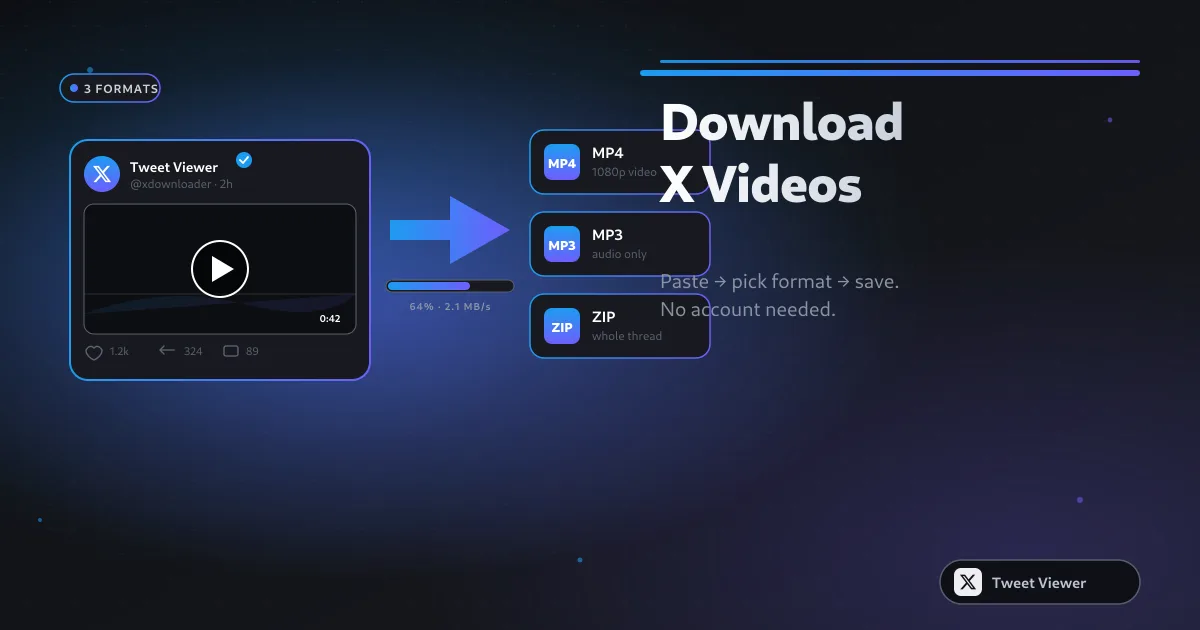
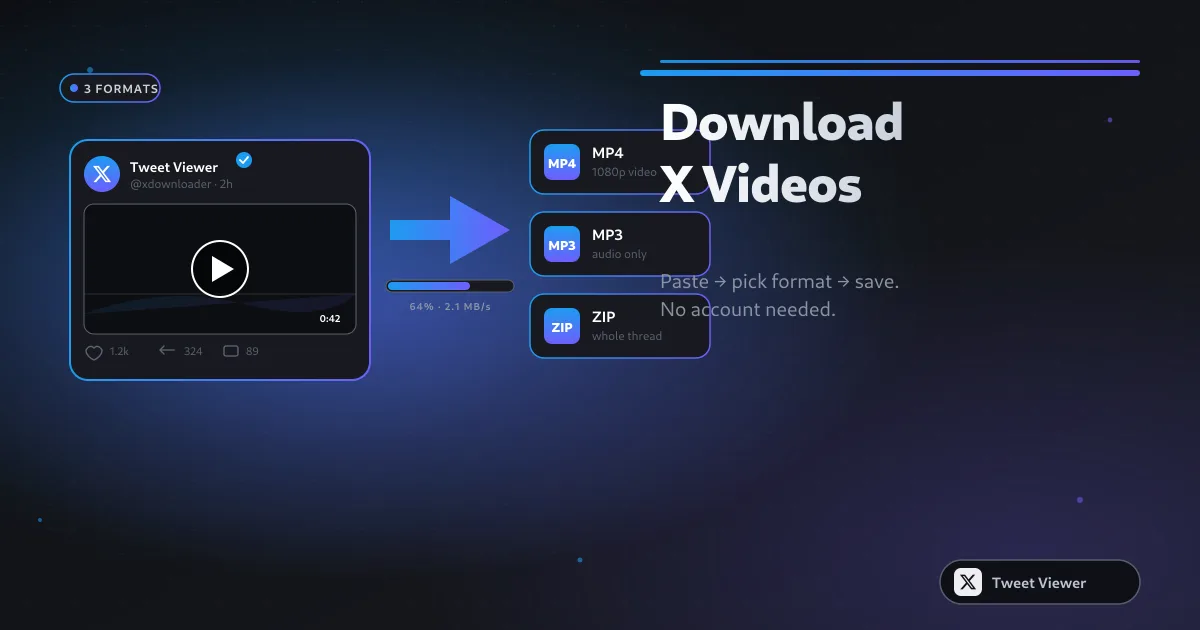
사람들이 Tweet Viewer를 찾는 가장 흔한 이유는 단 하나입니다. X에 로그인하지 않고 특정 트윗의 동영상을 저장하는 것입니다. 위 입력란에 게시물 링크를 붙여넣고 Download를 누른 뒤 1080p / 720p / SD 중 하나를 선택하면, 몇 초 안에 MP4가 다운로드 폴더에 도착합니다. X 계정은 전혀 사용되지 않고 로그인 창도 뜨지 않으며, 파일은 X가 브라우저에서 제공한 것과 완전히 동일한 MP4입니다.
Tweet Viewer의 도구들은 X가 제공하는 것과 동일한 화질로 Twitter 콘텐츠를 저장합니다 — 재인코딩 없음, 워터마크 없음, 강제 720p 제한 없음. 동영상은 깨끗한 MP4로, 오디오는 128 kbps MP3로, 스크린샷은 레티나급 PNG로, 일괄 다운로드는 하나의 .zip으로 저장됩니다. 다운로드한 파일은 실제로 게시된 것과 정확히 동일합니다.
많은 사용자가 SSSTwitter, SSSX, TwitterVideoDownloader, SnapX, SaveTwt, XSaver, SaveTweetVid, TWDown, TwDownloader, Twdownload, Snaptwitter 및 다양한 "Twitter to MP3" 도구의 대안을 검색하다가 유입됩니다. Tweet Viewer는 이 모든 것을 대체하는 통합 솔루션 역할을 합니다 — 브라우저 탭 하나에 다섯 가지 도구, 링크 붙여넣기와 다운로드 사이에 광고로 도배된 리디렉션 페이지 없음, 더 높은 화질 출력을 숨기는 프리미엄 등급도 없음.
Tweet Viewer는 어떤 권한도 요청하지 않습니다. X 사용자 이름, 비밀번호, 계정 접근을 요구하지 않습니다. 붙여넣은 게시물은 브라우저가 공개 FxTwitter API로 직접 조회하고, 미디어는 X의 공개 CDN에서 기기로 바로 스트리밍됩니다 — 저희 서버는 링크를 전혀 보지 못하며, 이에 관한 어떤 정보도 저장되지 않습니다.
공개된 X(Twitter) 게시물 링크를 복사하세요. 위 입력란에 붙여넣으세요. Download를 누르세요. 원하는 것에 맞는 탭을 선택하세요 — MP4 동영상, MP3 오디오, 스크린샷 PNG, 링크가 여러 개라면 일괄 .zip — 그러면 iPhone, Android, Windows, Mac 어디서든 파일이 바로 다운로드 폴더에 저장됩니다. 여전히 막히셨나요? 자주 묻는 질문에서 흔한 문제들을 다룹니다.