

Twitter Video to MP3 Without Installing Anything: Browser-Only Guide
You can extract audio from an X video with nothing but a URL and a browser tab. No admin password, no App Store approval, no Chrome extension. Here's why that matters and how it works.
Bottom line
Open /twitter-mp3-downloader in any modern browser, paste an X post URL, click Convert to MP3, and save the file. No installation, no login, no extension, no admin rights required — works on locked-down corporate laptops and school Chromebooks the same as on your home machine.
Table of Contents
Why 'no install' actually matters
Millions of people can't install anything on their primary computer: corporate laptops locked down by IT, school-issued Chromebooks with allowlisted extensions, library PCs, hotel business-center machines. On any of those, an install-required workflow is a full stop.
The MP3 downloader is a web page. If the browser can reach it, the tool works. That's the entire deployment. The same approach powers the bulk downloader and the screenshot capture.
What runs in your browser vs on the server
When you paste a URL, the tool asks a server to resolve the video and stream back the media. The audio extraction and MP3 re-encoding then run partly server-side (for reliability across weak devices) and partly client-side (to minimize server load). Nothing is stored on the server after the download completes — the file streams to your browser and the request context is discarded.
Because the whole flow runs over standard HTTPS, corporate proxies don't block it the way they block obvious download-tool traffic. There are no funky ports, no WebSocket handshakes to distinctive endpoints, no drop-off patterns to trigger security dashboards.
Browsers and platforms supported
Chrome, Firefox, Safari, Edge, Opera, Brave, Arc, Vivaldi — every modern browser released since 2020 is supported. Chromebooks work identically to Windows and macOS. Mobile Safari on iPhone and Chrome on Android work with the same tap-paste-convert flow (see the iPhone guide).
Old Internet Explorer and pre-2020 mobile browsers may fail on the audio-encoder step because they lack the required Web Audio API features. Any browser under three years old should be fine.
Compared to install-required alternatives
Install-required tools: yt-dlp (command line, requires Python or a binary), VLC (record-out method, no MP3 export without a rebuild), Any Video Converter (adware installer). All three work but all three require admin rights and shell familiarity.
Chrome extensions: cheaper to install than a full app, but Chrome removed dozens of X downloader extensions in 2024–2025, as covered in our extensions comparison. On a Chromebook, most work profiles allowlist extensions individually and users can't self-install.
Corporate network considerations
Some corporate networks block the underlying video.twimg.com asset URLs because they're associated with video streaming category filters. If the tool returns "Media fetch failed," try again from a different network (mobile hotspot, home Wi-Fi). This is a network policy issue, not a tool problem — no workaround from the browser side is possible without violating your acceptable-use policy.
Downloading a public tweet's audio is normally not a policy violation, but check with IT if you're on a heavily monitored network. Corporate DLP tools log downloads by URL pattern and MP3 file downloads can trigger review.
When the browser-only approach is the wrong call
If you need to convert hundreds of clips per day, a scripted workflow with yt-dlp on a personal machine is faster than repeatedly pasting URLs. If you need lossless output, no browser tool can help — you need ffmpeg locally to bypass the MP3 re-encode step entirely.
For everyone else — students, journalists, casual listeners, most professionals — the browser-only path is the shortest path from "there's a clip I want to save" to "the file is on my device." See the direct conversion guide for the click-by-click flow.
Frequently asked questions
Do I need to allow pop-ups or JavaScript?
JavaScript, yes — the tool is a modern web app. Pop-ups, no — downloads happen through the browser's native download manager, not a pop-up window.
Will incognito / private browsing work?
Yes. There's no login, no cookies required, no session state. The tool works identically in normal and incognito windows.
Is there a file-size limit?
Browsers cap in-memory audio processing at roughly 1 GB before hitting memory pressure. That's about 10 hours at 192 kbps — well beyond any realistic X clip.
Does the tool leave a fingerprint or trace on the machine?
No more than any web page. Browser history entries and standard TLS logs on the network are the only traces. The tool itself does not write persistent local files beyond the downloaded MP3.
Can I use it on a Chromebook without a Google account?
Yes if the Chromebook allows guest browsing. The tool runs in the browser regardless of sign-in state.
Sources & further reading
Related reading
How to Convert a Twitter Video to MP3 in 2026
MP3 is still the most portable audio format on Earth. Pulling audio out of an X post takes one paste and one click — this guide covers the flow, the quality trade-offs, and the mobile-Safari gotchas.
How to Download Audio from Twitter on iPhone (iOS)
iOS's tight audio sandbox used to make downloading Twitter audio a hassle. In 2026 Safari's download manager and the Files app cover the whole workflow with two taps — here's the exact route.
Twitter to MP3 Quality Guide: Bitrate and Format
The bitrate dropdown looks simple but hides the most misunderstood trade-off in consumer audio. Here's what 128, 192, and 320 kbps actually mean for X-video-to-MP3 conversion, and when each is worth picking.
How to Download Twitter (X) Videos: 5 Methods for 2026
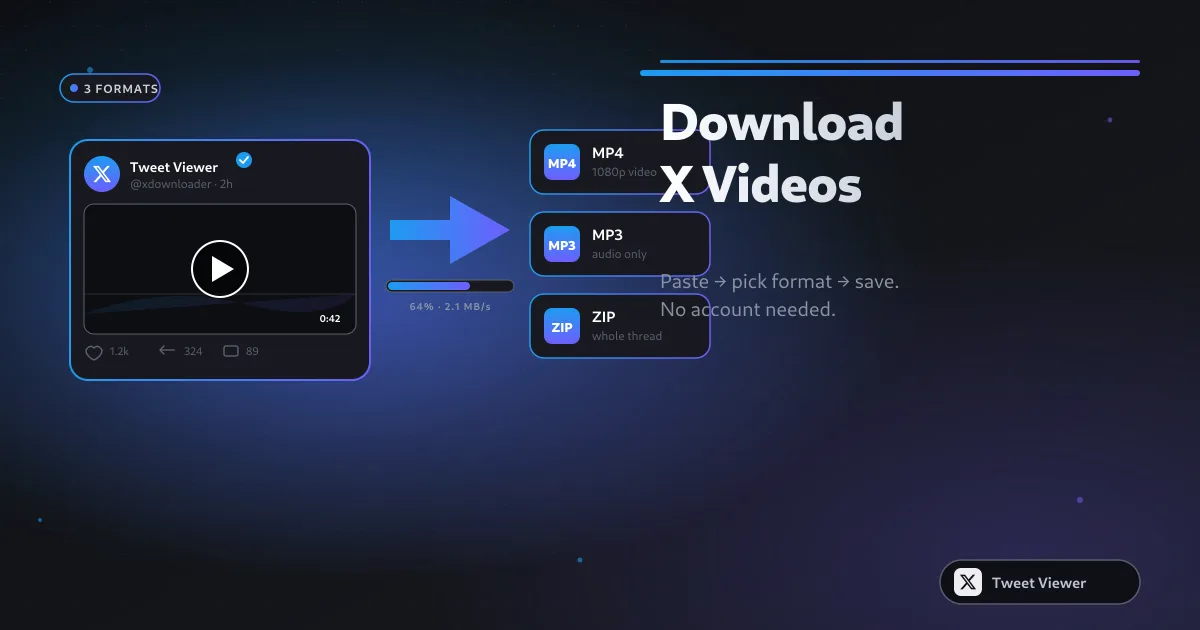
Five real methods to save X (Twitter) videos — from a paste-and-save browser tool to screen recording as the last resort. Comparison table, quality trade-offs, and legal notes for 2026.