

How to Download Twitter (X) Videos: 5 Methods That Work in 2026
Five real methods to save X (Twitter) videos — from a paste-and-save browser tool to screen recording as the last resort. Comparison table, quality trade-offs, and legal notes for 2026.
Bottom line
To download a Twitter (X) video: copy the post URL, open a downloader tool like Tweet Viewer (paste → pick MP4 or MP3 → save), and the file downloads directly to your device. Works without logging into X, on any browser, for both single videos and threads.
Table of Contents
Method 1 — Browser tool (recommended)
The fastest, cleanest method in 2026: use a web-based downloader tool. Paste the URL, pick a format, save. No install, no login, no extension.
On X or the mobile app, tap the share icon on the post → Copy link. Open Tweet Viewer, paste, and choose MP4 for video, MP3 for audio only, or Bulk mode if you're grabbing an entire thread.
Why it's the recommended method:
- No account or login required — the tool reads the public post metadata directly.
- Works on desktop, iOS, Android, tablet — anywhere with a browser.
- Preserves original quality up to 1080p (or whatever the poster uploaded).
- No files sit on someone else's server after you're done.
Related tools on this site: Bulk downloader (multiple videos at once, zipped), MP3 downloader (audio-only extraction).
Method 2 — Browser extension
Extensions inject a download button next to the video player on x.com itself. When it works, it's a single click. When it breaks, the extension developer has to ship an update to match X's latest DOM changes.
Popular options in 2026: FastForward, Twitter Video Downloader, and forks of the older Video Downloader Plus for Chrome. Install caveats:
- X updates its markup frequently; expect any extension to break every few months.
- Some extensions ask for "read and change data on all websites" — that's more access than they need. Review permissions before installing.
- Extensions can't reach Protected accounts you don't follow — same as the browser tool.
Best for: users who download videos multiple times per day and want the tightest workflow.
Method 3 — Screen recording (last resort)
When nothing else works — for example on Protected posts you can see because you follow the account, or on Community posts with restricted embeds — screen recording is the backup that always works.
Built-in tools:
- iOS: Add "Screen Recording" to Control Center (Settings → Control Center). Start the recording, play the video, stop the recording, trim in Photos.
- Android: "Screen record" is in the Quick Settings tray on Android 11+.
- Windows: Xbox Game Bar (Win+G) or the built-in Snipping Tool with video recording.
- macOS: Cmd+Shift+5 opens the screen-record picker.
Trade-offs: no better quality than what you can display, no audio-only option, and you have to trim the file after. Fine for one-off saves, painful at scale.
Method 4 — Third-party mobile apps
App-store apps package the browser-tool workflow into a share-sheet extension. On iOS, look for apps that install a "Save Video" option in the X share sheet. On Android, the equivalent is a "Share to app" target.
What to look for:
- No mandatory account signup — a good downloader has no reason to know who you are.
- Explicit list of supported formats (at least MP4 720p and 1080p).
- Recent updates in the app store — abandoned apps break the moment X changes anything.
- Reasonable pricing — most legitimate apps are free with a small tip jar or a one-time $2–5 unlock. Anything charging $10/month for basic downloads is a red flag.
Trade-off vs the web tool: apps take up storage, can nag you with notifications, and sometimes sell your usage data. If you're only downloading occasionally, the web tool wins.
Method 5 — Command line (power users)
If you're comfortable in a terminal, yt-dlp handles X URLs out of the box:
yt-dlp "https://x.com/user/status/1234567890"Advantages: pick exact quality (-f best), extract audio-only (-x --audio-format mp3), batch a whole file of URLs (-a urls.txt), and script it all. yt-dlp is actively maintained and usually the first tool to update when X changes its endpoints.
Disadvantages: you have to install Python or use a prebuilt binary, and you have to keep yt-dlp updated (yt-dlp -U) or downloads start silently failing. Not for casual users; unbeatable for anyone downloading hundreds of videos.
Comparison at a glance
Quick guide to which method to use when:
- One-off, on any device, no install: Browser tool. Zero friction.
- Multiple videos per day, desktop: browser extension for the click-in-place workflow.
- Protected posts you already follow: screen recording is the only method that reaches them.
- Save from the X app on iOS/Android: a third-party share-sheet app.
- Hundreds of videos, scripted: yt-dlp.
- Audio only (podcasts, Spaces, music): MP3 downloader.
- Whole thread or channel: Bulk downloader.
Is it legal to download X videos?
Downloading a public X video for personal viewing is generally treated as fair use in most jurisdictions — it's not meaningfully different from bookmarking or screenshotting. What you do with the file next is where the rules apply:
- Personal use / research / education / commentary: generally fine under US fair use and equivalent doctrines in most EU countries.
- Reposting the video under your own account without credit: a copyright violation and against X's Terms of Service.
- Commercial use / advertising: you need the poster's permission.
X's own Terms prohibit "scraping" and unauthorized use of the API for redistribution. Downloading a single video for personal use is not scraping. Automating downloads of thousands of videos to seed a competing service is.
Whatever tool you use, give credit if you re-share — a link back to the original post is both good etiquette and legal cover.
Troubleshooting: when a download fails
Common failure modes and fixes:
- "Video not found." The post was deleted, the account was suspended, or the account went Private. Re-fetch the URL from a currently-visible copy.
- "Age-restricted." Some posts require login. Try yt-dlp with cookies exported from your browser (
--cookies-from-browser firefox). - Wrong format. X occasionally serves HLS-only videos. Bulk downloader handles those automatically; the standard tool falls back to the highest MP4 available.
- Slow download. X's media CDN throttles individual streams. If your download stalls above 90%, restart it and it typically completes in seconds.
Still stuck? Cross-check that X isn't having an outage — a partial outage of the media CDN looks identical to a broken downloader.
Frequently asked questions
Can I download Twitter (X) videos without an account?
Yes. Web-based downloaders like Tweet Viewer read the public post metadata directly — no login or X account is required. Only Protected posts require you to already follow the account.
What's the highest quality I can download from X?
You get whatever quality the poster uploaded, up to 1080p in most cases. Some accounts upload 4K, in which case X preserves it. The download will never be higher-quality than the source.
Is it legal to download X videos?
Downloading for personal viewing, research, or commentary is generally fine in the US and most of Europe. Reposting under your own account without credit, or using the video commercially without permission, is not.
Can I download videos from Protected (private) accounts?
Only if you already follow the account and are logged in. Screen recording is the most reliable method for Protected content — browser tools without login can't reach it.
Do X video downloaders steal my data?
A reputable downloader like Tweet Viewer never asks for your login and processes the URL server-side without storing your history. Avoid tools that ask you to log in with your X credentials or install a heavy extension with broad permissions.
Can I download an entire thread of videos at once?
Yes — use a Bulk downloader. Paste the parent post URL and it fetches every video from the thread into a single .zip file.
Sources & further reading
Related reading
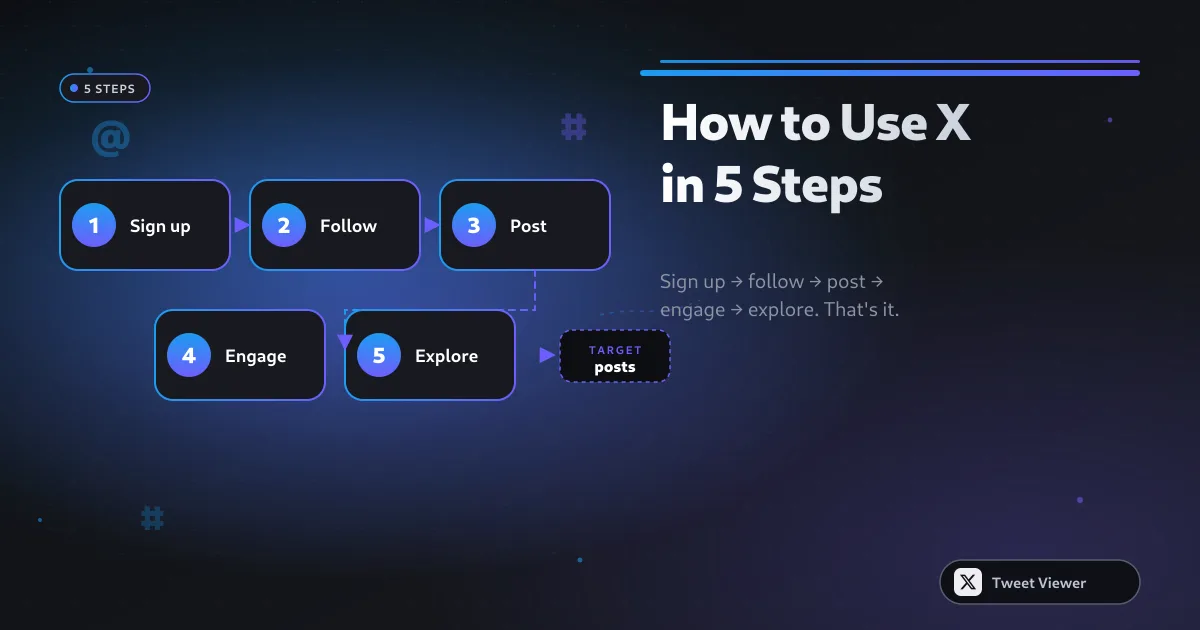
How to Use Twitter (X) in 2026: Beginner-to-Power Guide
A calm, structured guide to using X in 2026 — how to sign up, curate a good feed, post without cringing, and eventually run circles around most 2010-era Twitter accounts.
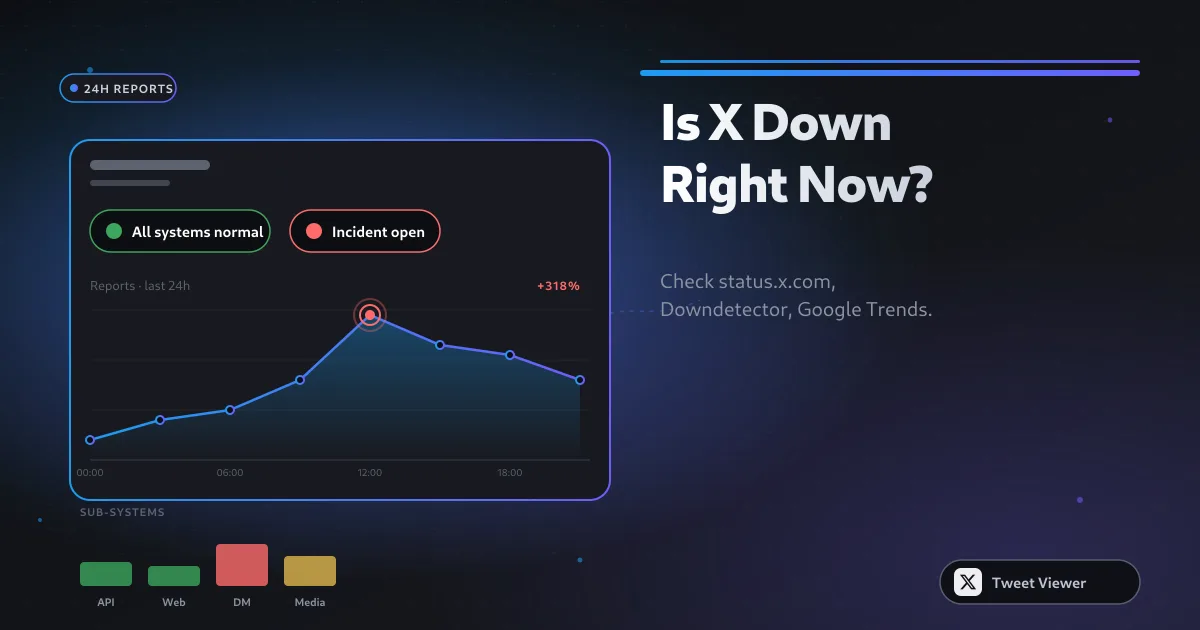
Is Twitter (X) Down? How to Check + Common Reasons
How to tell whether X is genuinely down for everyone, just down in your region, or blocked on your device — with the three status pages that will give you a straight answer in 30 seconds.
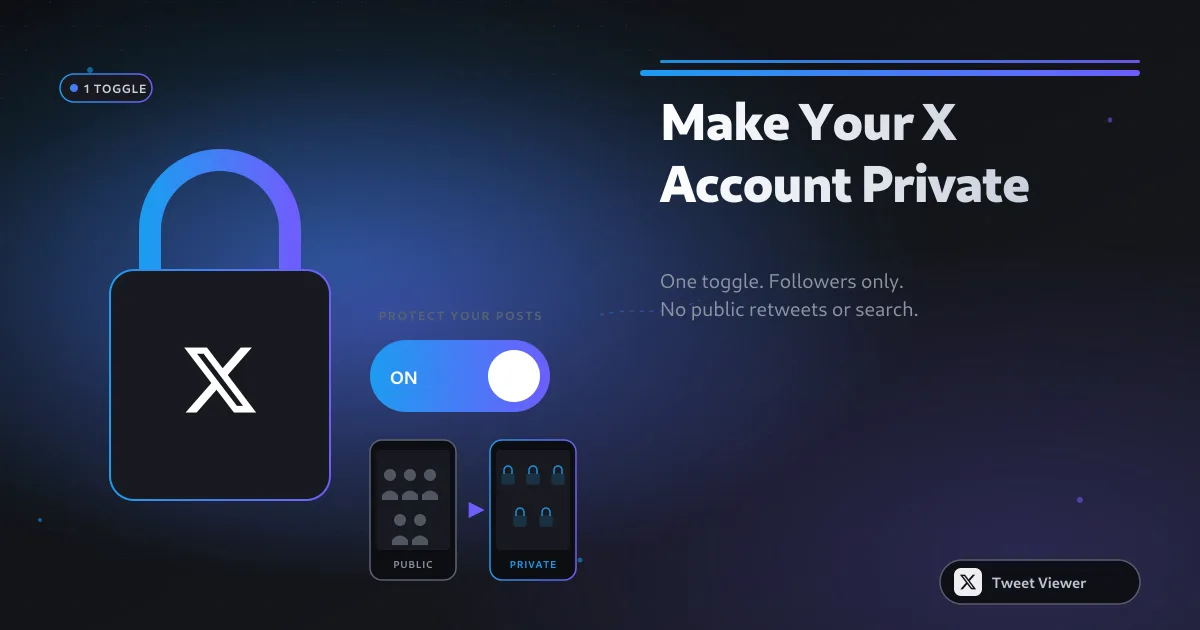
How to Make Your Twitter (X) Account Private: Step-by-Step
Making your X account private (X calls it 'Protect your posts') restricts who can see, reply to, and share your posts. Here's exactly how to flip the switch and what changes after you do.
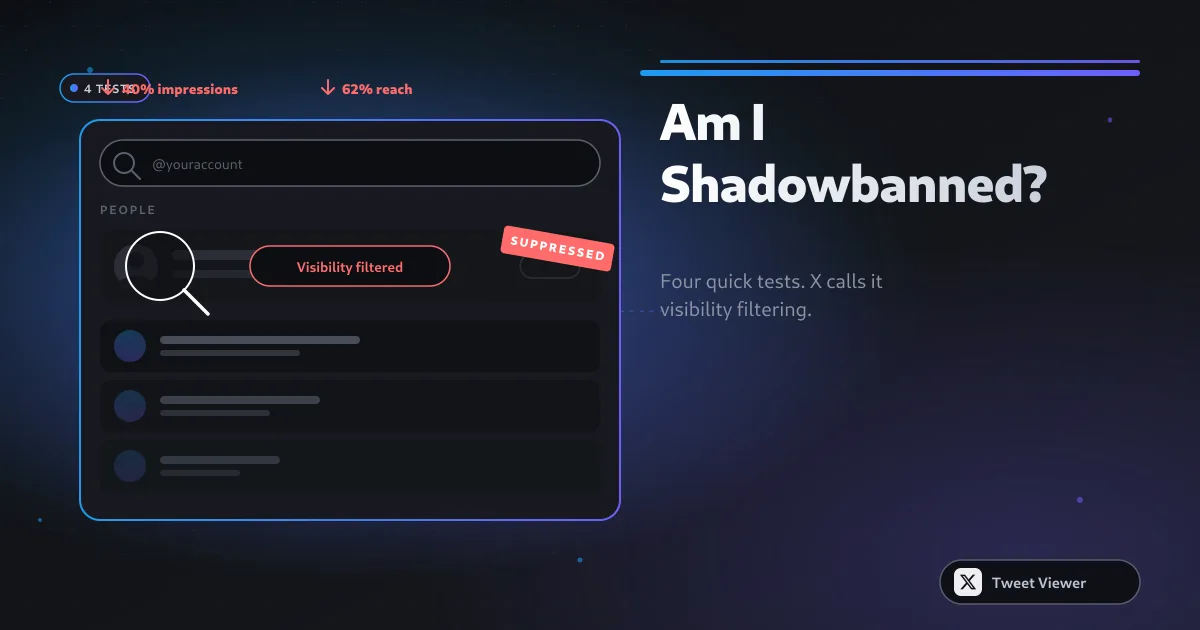
Am I Shadowbanned on Twitter (X)? How to Check + Fix
'Shadowban' is informal — X calls it visibility filtering. Here's how to test whether your reach has been reduced, distinguish it from a normal engagement dip, and what to actually do about it.