

How to Make Your Twitter (X) Account Private in 2026
Making your X account private (X calls it 'Protect your posts') restricts who can see, reply to, and share your posts. Here's exactly how to flip the switch and what changes after you do.
Bottom line
To make your Twitter (X) account private, go to Settings → Privacy and safety → Audience, media and tagging → Audience → Protect your posts. Once enabled, only approved followers see your posts, they can't be retweeted, and they don't appear in public search results.
Table of Contents
What 'private' means on X in 2026
X calls a private account a Protected account. Once you enable it:
- Only people you've approved as followers can see your posts.
- Your posts don't appear in Google or X search results for logged-out users.
- Your posts can't be retweeted or quote-posted publicly.
- Existing followers stay put — they don't need to re-request.
- New follow requests must be approved one by one.
What doesn't change: your @handle, display name, bio, profile photo, header, and following list are still public. If someone visits your profile URL, they'll see everything except your posts. Reply-to-you visibility also stays — anyone can reply to your posts if they can see them. If "private" isn't strong enough for what you need, the next step up is to delete the account entirely.
Step-by-step on web (fastest)
The web flow takes about 30 seconds:
- Log in at x.com.
- Click More in the left rail → Settings and privacy.
- Open Privacy and safety.
- Click Audience, media and tagging.
- Toggle on Protect your posts.
- X shows a confirmation modal — click Protect.
Your profile now shows a padlock next to your name for anyone who visits it. That's the signal to the world that you're private.
Step-by-step on iOS and Android
Mobile is the same flow, buried one menu deeper:
- Tap your profile picture in the top left.
- Tap Settings and privacy.
- Tap Privacy and safety.
- Tap Audience, media and tagging.
- Toggle Protect your posts on and confirm.
On Android, some builds label the section slightly differently ("Audience and tagging"), but the toggle name and location are the same.
Approve, deny, and manage follow requests
Once you're private, new followers show up as follower requests. Approve or deny them from the Notifications tab or the dedicated Follower requests screen in your profile menu.
Approving is one-way: they can now see your posts, but you don't automatically follow them back. If you approve someone by accident, you can remove them any time from your Followers list — X will simply un-follow them without notifying them.
Blocked accounts can't send follow requests. If someone is being persistent, block first, then move on — blocked users get a clear "you're blocked" screen and stop wasting your time.
What existing followers can and can't do
Your existing followers keep all their access. What changes for them:
- They can still reply to your posts, but replies from non-followers are hidden.
- They can't retweet you publicly. The retweet button is disabled — they can still quote-post you, but only their own followers who are also your approved followers will see it.
- They can screenshot and share externally. Private mode is not a leak-proof vault; it's a friction layer — a follower with our screenshot downloader can turn any of your posts into a shareable PNG in seconds. Assume anything you post can escape the fence.
- Your DMs are unchanged. Private accounts can still send and receive DMs based on your DM privacy setting.
If you want stronger private-DM security, also turn off "Allow message requests from everyone" in the DM settings. That closes off unsolicited DMs entirely.
Reversing it: going public again
Going back to public is one click: same menu, toggle Protect your posts off. When you do, every post you made while private becomes publicly visible immediately — including old ones. If there are specific posts you don't want people to see, delete them before flipping the switch, not after. If some of those posts have media you want to keep offline first, save them via our HD video downloader — once they're gone from X, they're gone.
Your follower list doesn't reset. Everyone who was approved stays approved, and now anyone can follow without approval.
Frequently asked questions
Can people still see my profile if my X account is private?
Yes — your @handle, display name, bio, profile photo, and header stay public. Only your posts, replies, media, and likes are hidden from non-followers.
What happens to my current followers when I go private?
Existing followers keep their access with no action needed. Only new follow requests will require your approval.
Can protected accounts be retweeted?
No — retweeting is disabled for private accounts. Followers can still quote-post you, but only within the shared follower graph.
Do private tweets show up in Google search?
No — X blocks search-engine indexing for protected accounts and returns 'unauthorized' to logged-out crawlers.
Can I make just one tweet private?
No. Privacy on X is account-level, not tweet-level. If you want a single post hidden, delete it or move it to a Community post visible only to that community.
Will going private stop harassment?
It cuts down a lot of it — non-followers can't reply, quote, or search you. But motivated harassers can screenshot, create burner accounts, or work around the setting. Combine with block, mute, and — if it's serious — X's Safety reporting tools.
Sources & further reading
Related reading
How to Delete a Twitter (X) Account — 2026 Guide
Deleting an X account is a two-step process: you deactivate first, then X permanently erases everything 30 days later. This 2026 guide walks through every screen, plus data export and handle recovery.
Am I Shadowbanned on Twitter (X)? How to Check + Fix
'Shadowban' is informal — X calls it visibility filtering. Here's how to test whether your reach has been reduced, distinguish it from a normal engagement dip, and what to actually do about it.
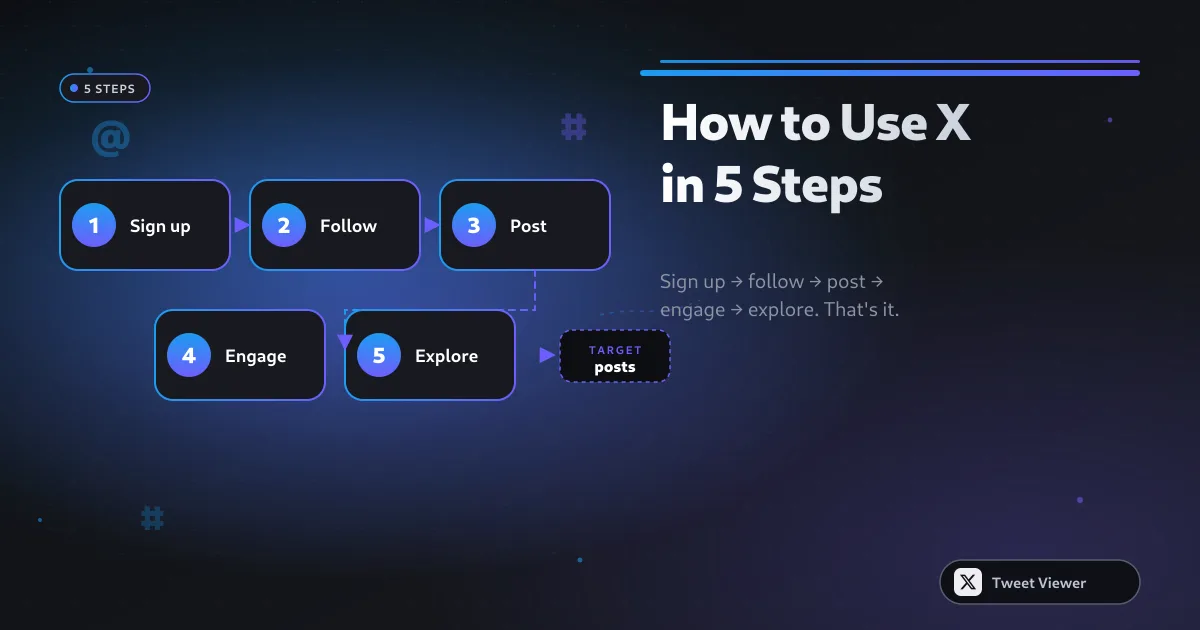
How to Use Twitter (X) in 2026: Beginner-to-Power Guide
A calm, structured guide to using X in 2026 — how to sign up, curate a good feed, post without cringing, and eventually run circles around most 2010-era Twitter accounts.
How to Download Twitter (X) Videos: 5 Methods for 2026
Five real methods to save X (Twitter) videos — from a paste-and-save browser tool to screen recording as the last resort. Comparison table, quality trade-offs, and legal notes for 2026.